Provisioner Tasks User Guide
Create single cards
The primary function of a provisioner is to create cards. The following is a list of functionalities they can perform.
Log into the web portal
Single card creation
Step 1: Specify card information
The provisioner
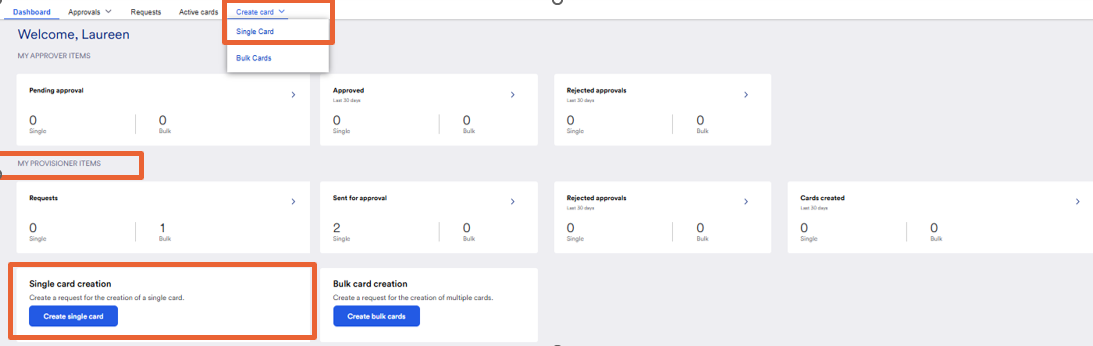
- clicks Create card menu
- Select Single card
OR
- Click Create single card button in your My Provisioner Items area.
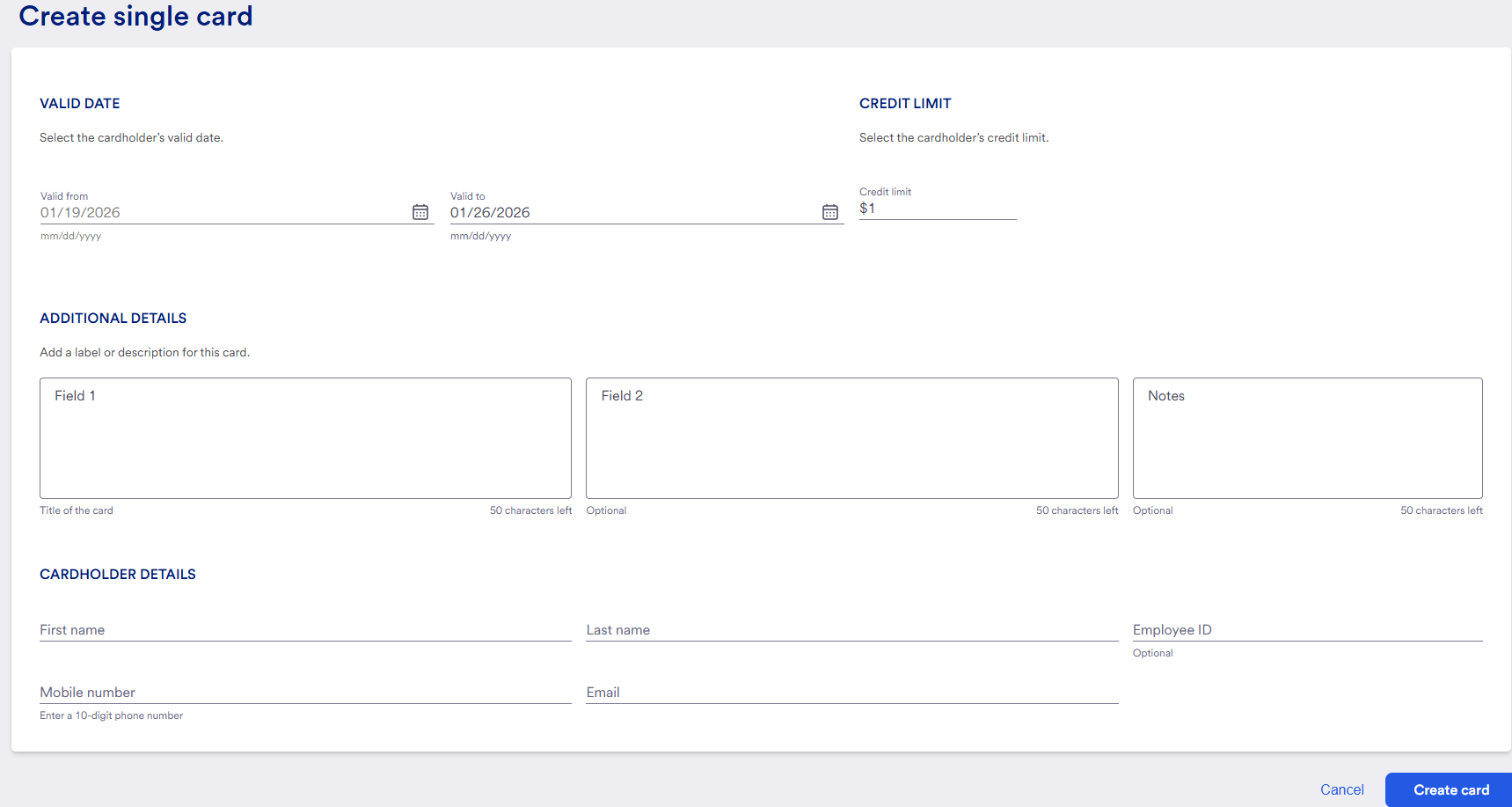
The provisioner specifies the card details. Below are all the available fields:
Card Valid from: (Required) This field is the date the card can begin being used. The default tis the current date. We plan to offer future provisioning at a later time.
Card Valid to: (Required)This field is the date that the card is valid until. A date up to 365 days from the ‘Valid from date’ can be set. The card will expire at the end of this day at midnight Eastern time.
Card Limit: (Required)This field is the monetary limit of the card. If this amount exceeds approval threshold, the card will require approval before being created. This limit value is unique to each client’s organization.
Field 1: (Required) This field is a general notes field for miscellaneous information, such as title of the card
Field 2: (Optional) This field is a general notes field.
Notes: (Optional)This field is a general notes field.
First Name: (Required) This field is the cardholder’s first name.
Last Name: (Required) This field is the cardholder’s last name.
Employee ID: (Required for Concur) This field enables a link between the system and Concur. If the customer is synced with Concur Pro, then the provisioner must enter the card user’s Employee ID in Concur. If the client does not use Concur Pro, then they can use this field for any other information they desire.
Email ID: (Required) This field is the email address the card will be created for and sent to.
Mobile Number: (Required) This field is the phone number of the cardholder. No functionality is tied to phone numbers at this time. No calling or text messaging will take place.
- When data in entered, click Create card.
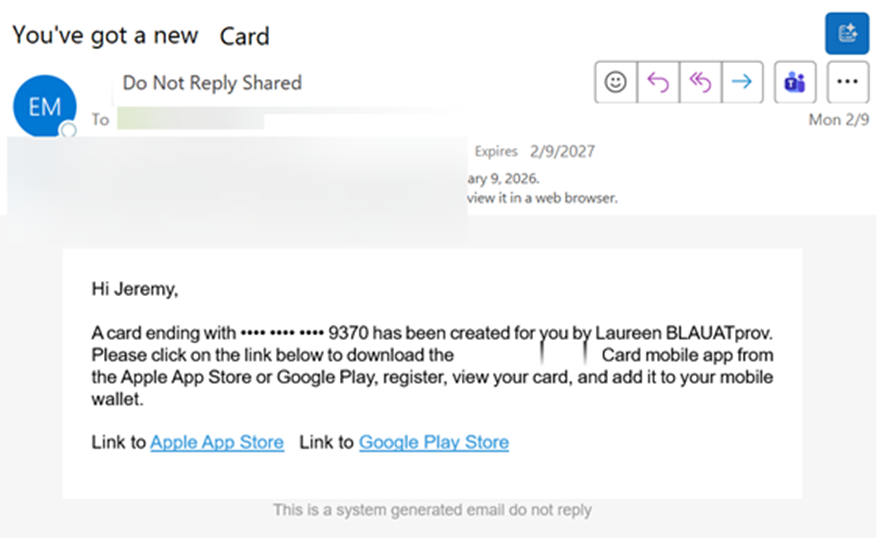
The system sends the card to the user already activated. User must then use the Mobile app to use the card.
Email example sent to cardholder:
Step 2: Post single card creation
After the provisioner creates the card, the system will direct the provisioner to the Active Cards screen where they can locate the card they just created. For more information on Active Cards screen, see that section.
FAQ
Why am I getting an error when creating cards? Cards failing creation can happen for a number of reasons. When troubleshooting this issue check for the following items:
Check the email address the card is being created for. If this email address is registered to another role like Provisioner, Approver or Card Company Administrator, it will fail. These roles cannot receive cards.
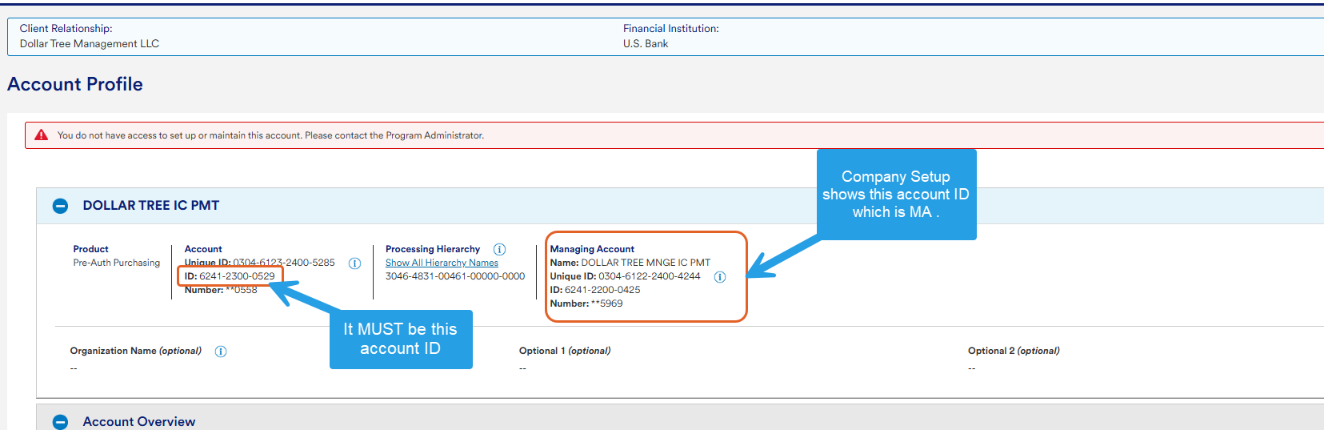
Is the managing account current and not delinquent, or is there potential fraud on their account?
Is the setup of the program correct? Refer to implementation SOPs to check for things like SUA pools, Custom Field setup in AxOL, and that the OSN is listed under the proper System IDs in