Provisioner Tasks User Guide
Edit cards in Active card view
Active Cards Screens
The active card screen is a place to see active cards that are currently assigned to users. At this time past cards that are no longer cannot be seen in the app; this will be a future enhancement. To review past account information, you will need to run a report in Access Online.
On this screen the user can see basic details about the cards.
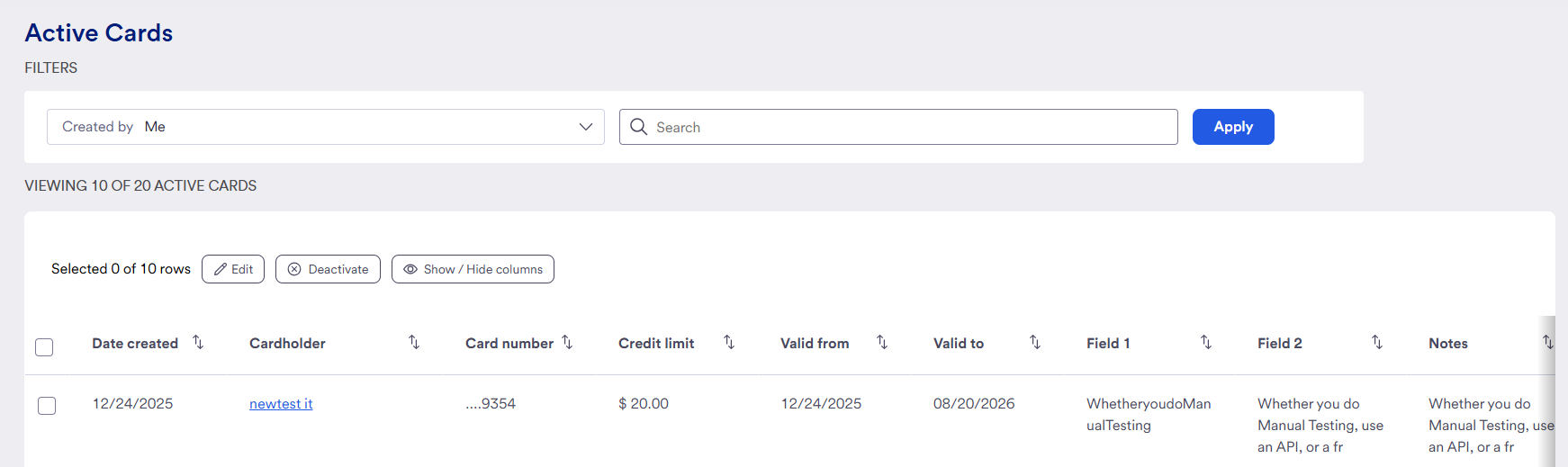
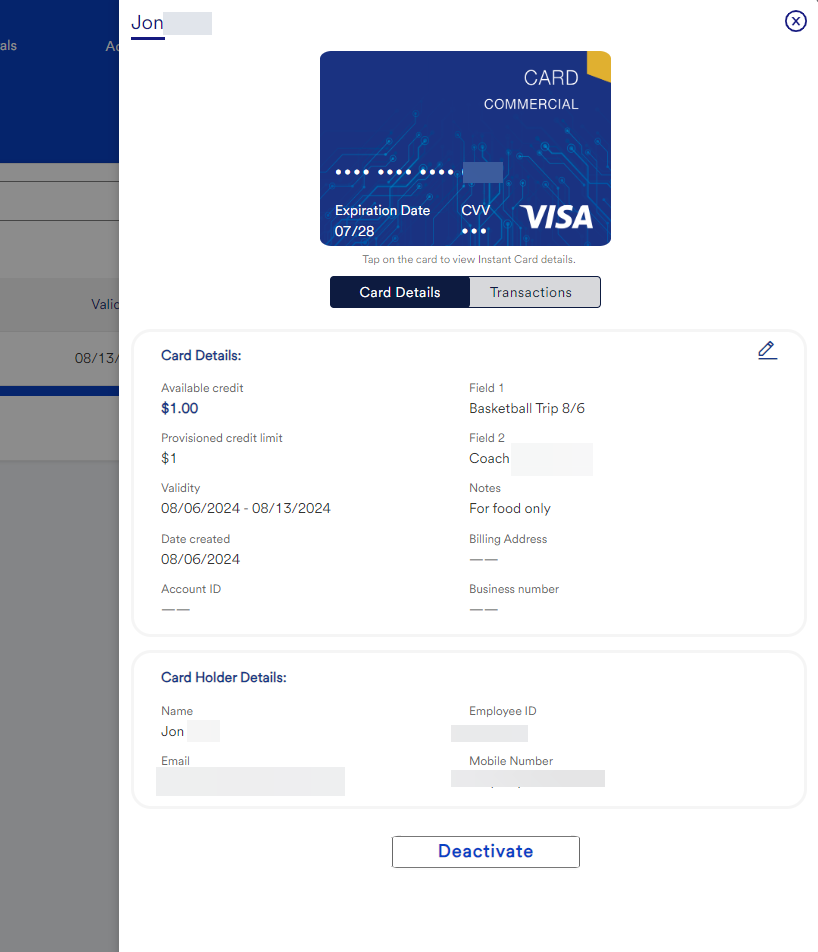
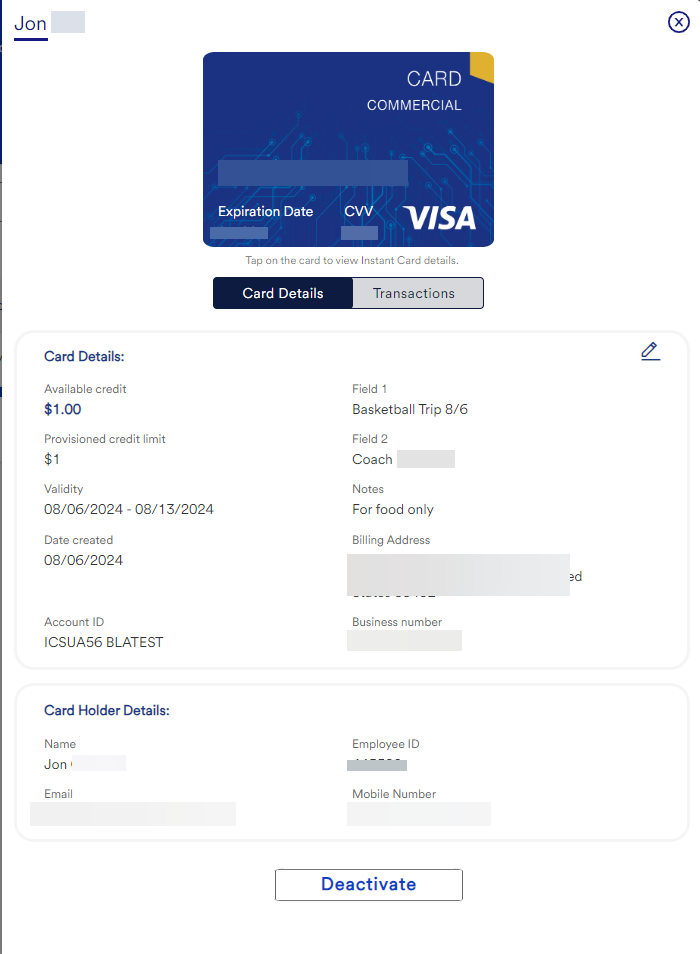
By clicking on the cardholder’s name, the provisioner can see additional card details.
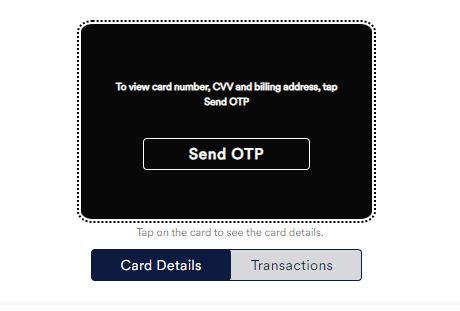
If the user clicks on the image of the card, they can request a one-time password (OTP) sent to their email, which will then unlock the full card information.
All Active Cards
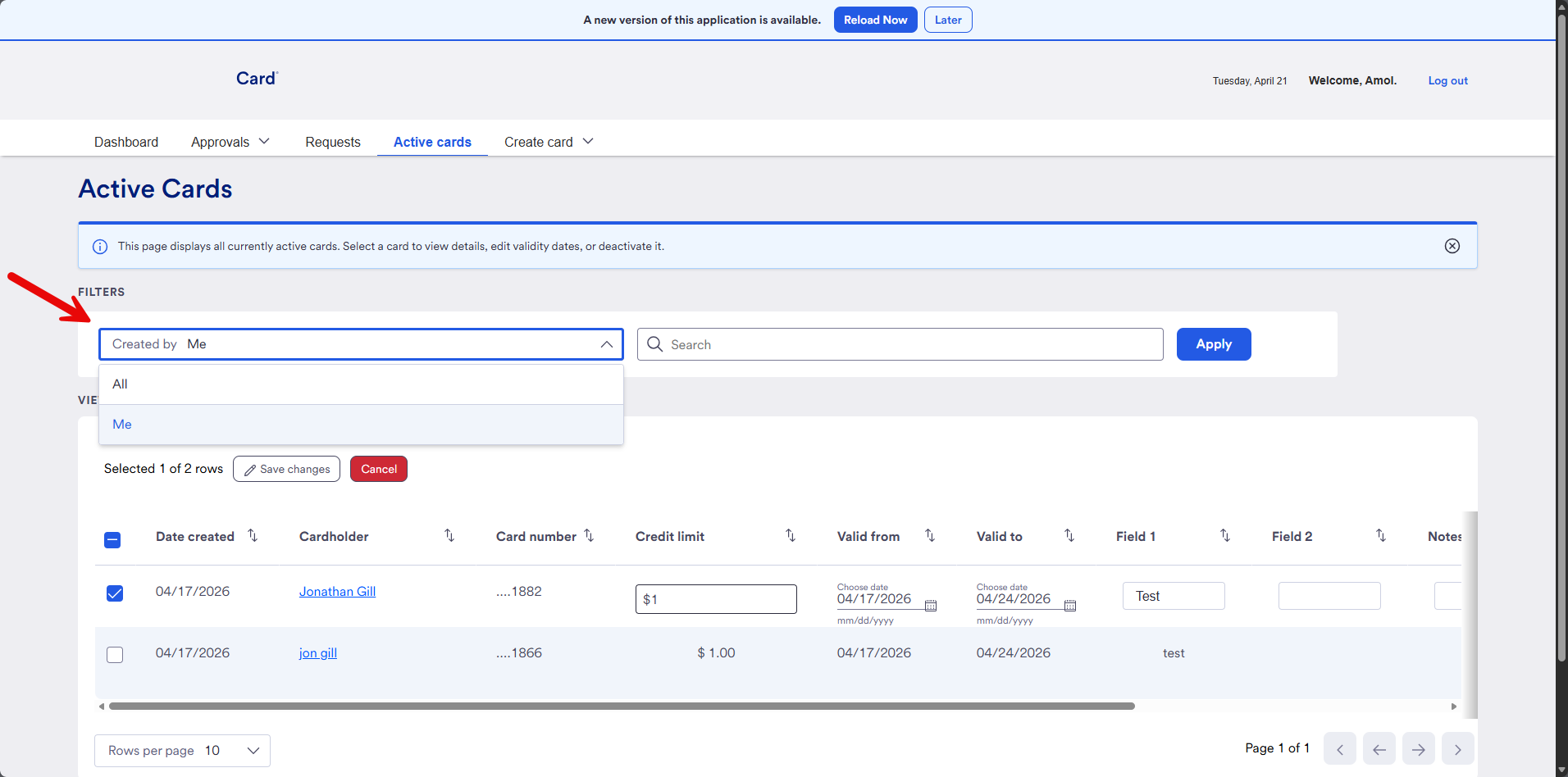
The All Active Cards option allows a provisioner to see all cards created across their program from all provisioners.
It is recommended that all provisioners have this view in order to appropriately support their business. To ensure a user has this view, check their profile on the administrator site.
All active cards can be viewed by changing the filter:
My Requests
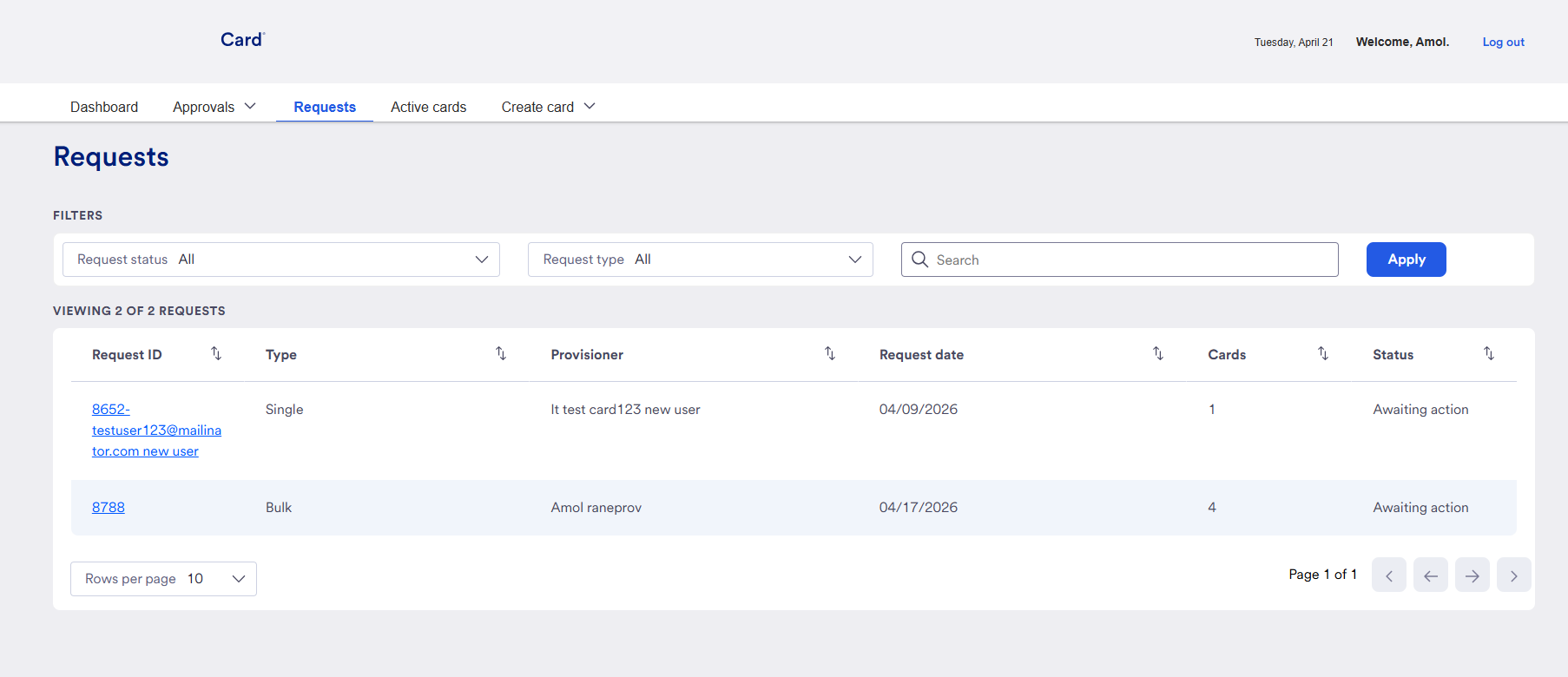
The My Requests page is where a provisioner can go to find unfinished bulk card creation requests, as well as cards requested from Card Users.
Active Card View
The active card view is a place to see cards that are currently assigned to users. At this time past cards that are no longer valid cannot be seen in the app; this will be a future enhancement. To review past account information, you will need to run a report in Access Online.
On this screen the user can see basic details about the cards.
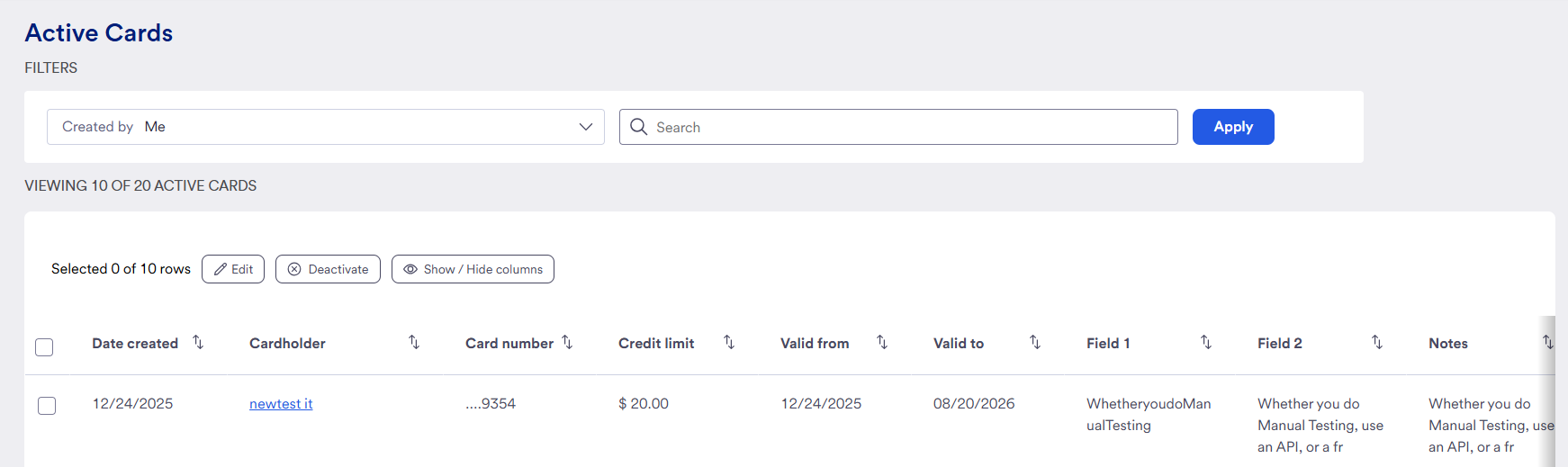
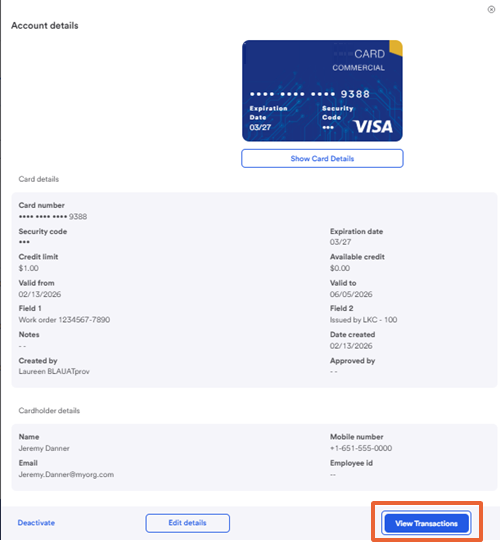
By clicking on the cardholder’s name, the provisioner can see additional card details.
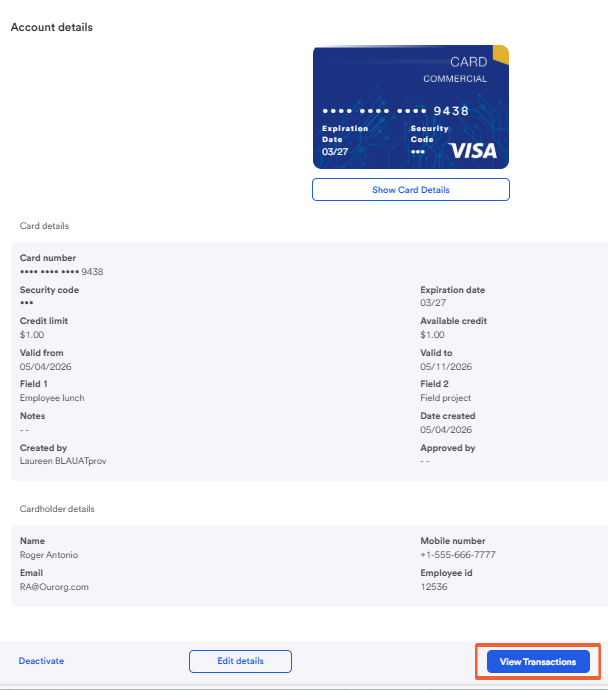
If the provisioner (or other roles) click on the Show card details, they will be able to request a one-time password (OTP) sent to their email, which will then unlock the full card information.
- Click Show Card Details
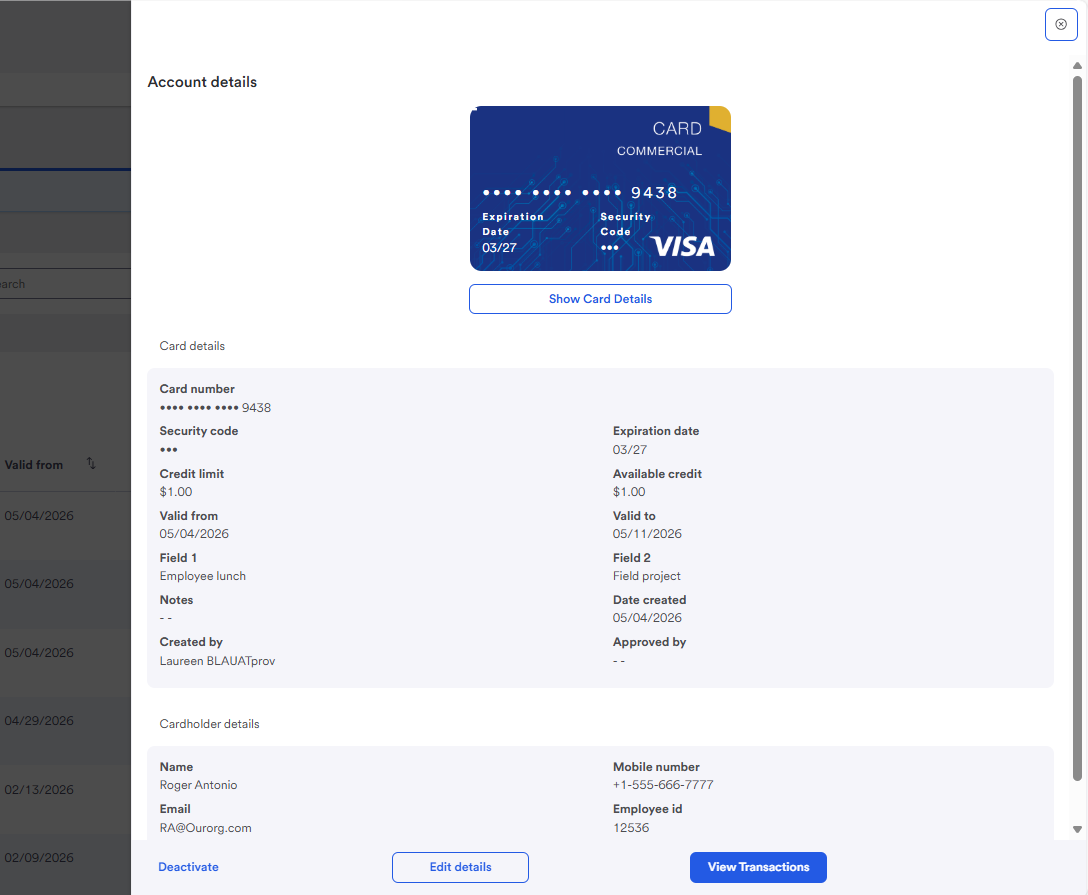
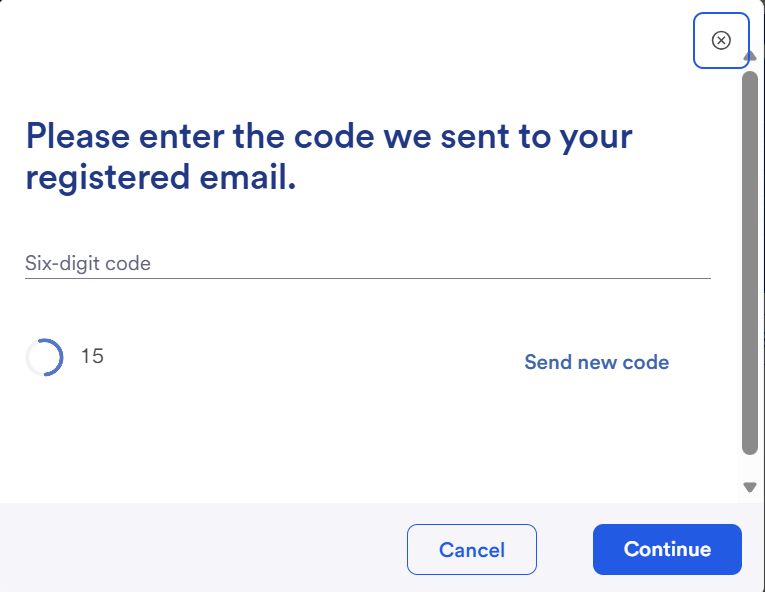
A one time passcode (OTP) will be sent to the provisioner's registered email.
Open the email and retrieve the passcode.
- Enter the passcode
- Click Continue
The card details will appear.
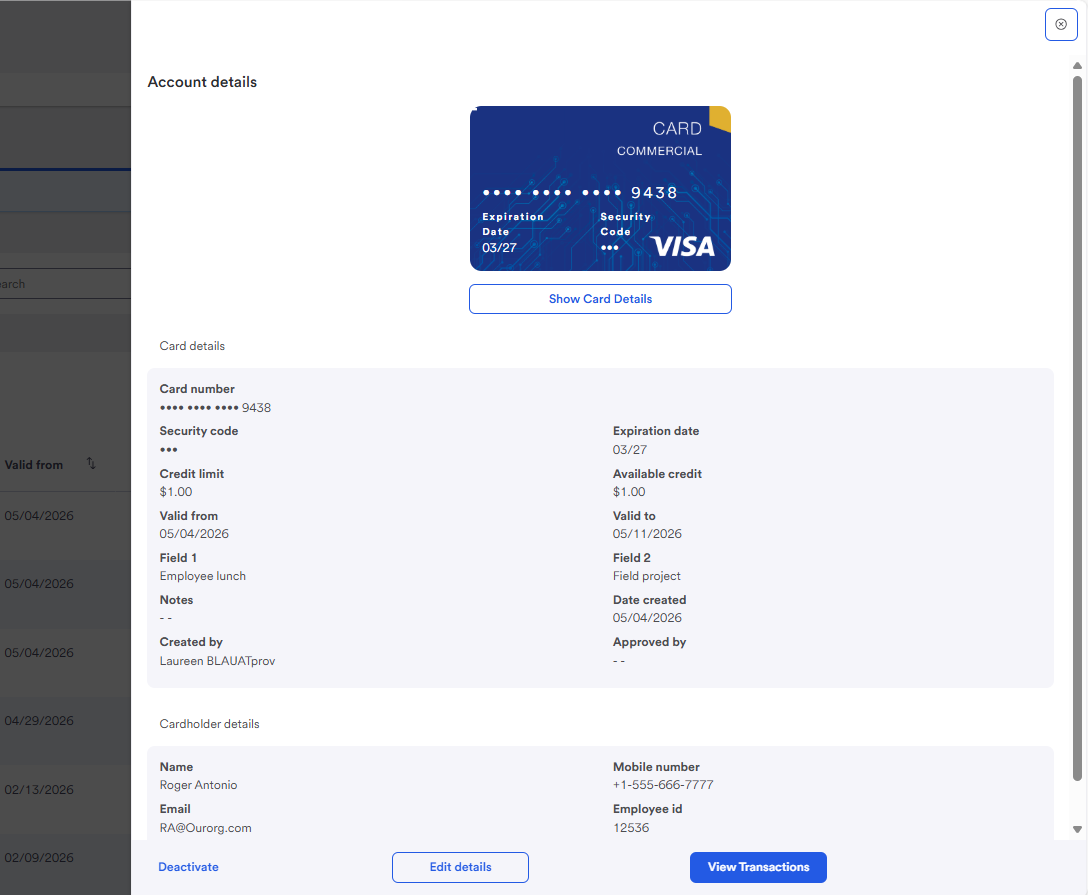
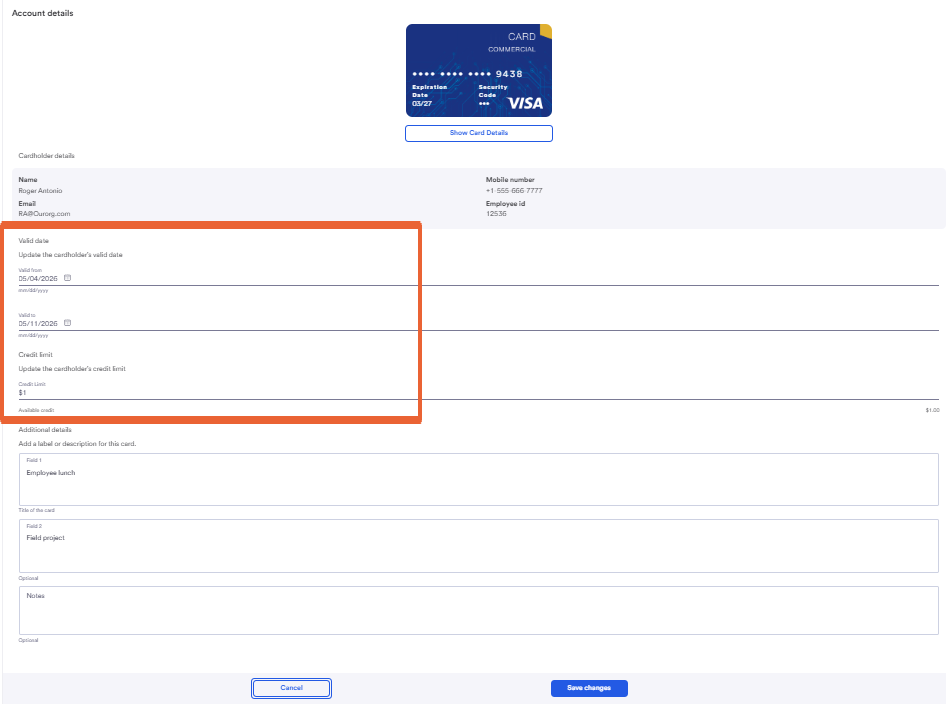
- Click Edit details
Editable fields at this time:
- Valid from (Tip! use the calendar icons to select your new date)
- Valid to
- Credit limit
- Save your changes!
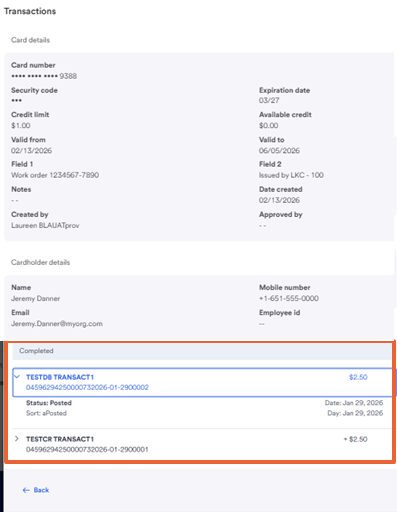
If you wish to review transactions made on this card,
- Click View Transactions
The transactions appear at the bottom of the view.
All Active Cards
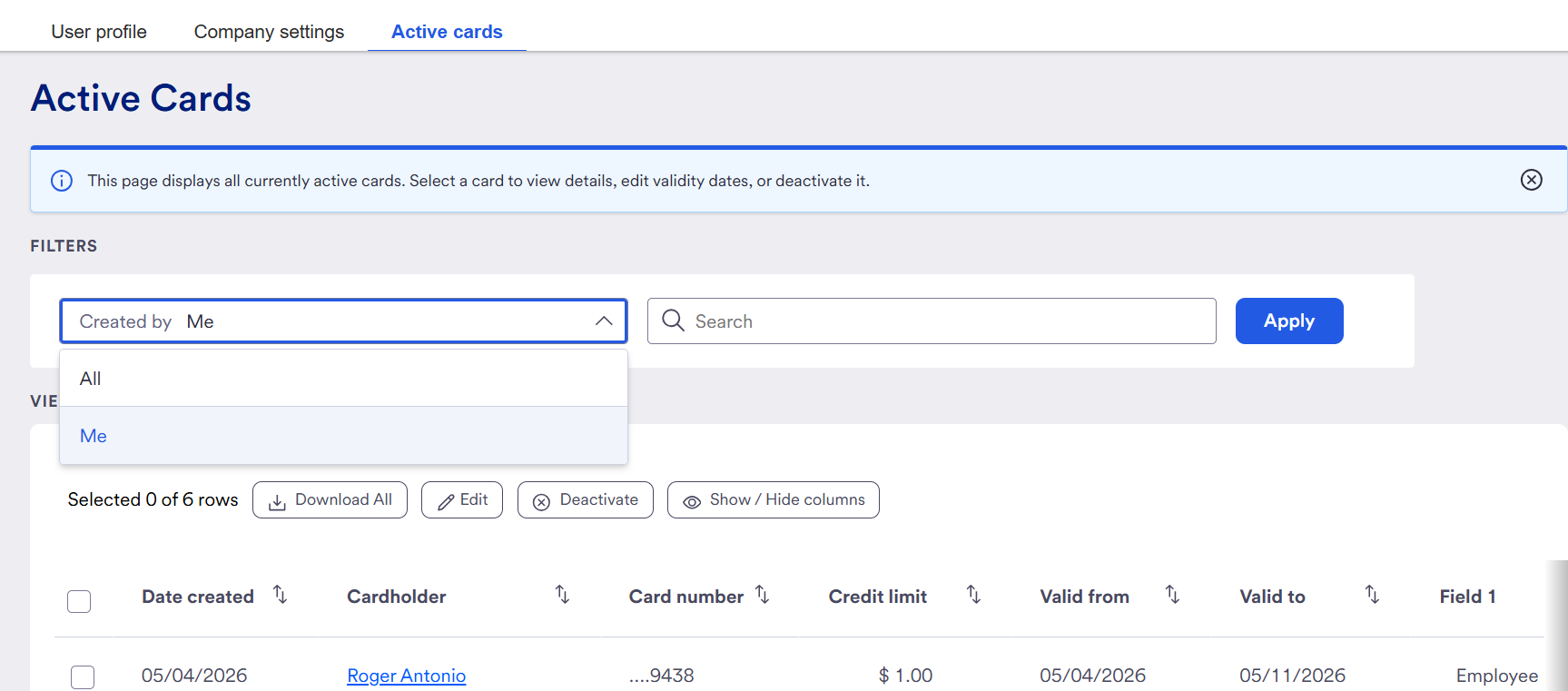
If a provisioner has the All Active Cards option, it allows a provisioner to see all cards created across their program from all provisioners.
It is recommended that all provisioners have this view in order to appropriately support their business. To ensure a user has this view, check their profile on the administrator site.
You can choose to see all active cards by changing the filter:
Active Card Functionality
On the active card screens, provisioners have the ability to perform the following actions:
- View full card details
- Deactivate a card
- Modify a card
- View Card Details - In order to view the card details, click on a cardholder’s name. This will open a side panel that displays all basic information for the card. You can also click on ‘Show card details to request a one-time password and see the full card number and billing details.
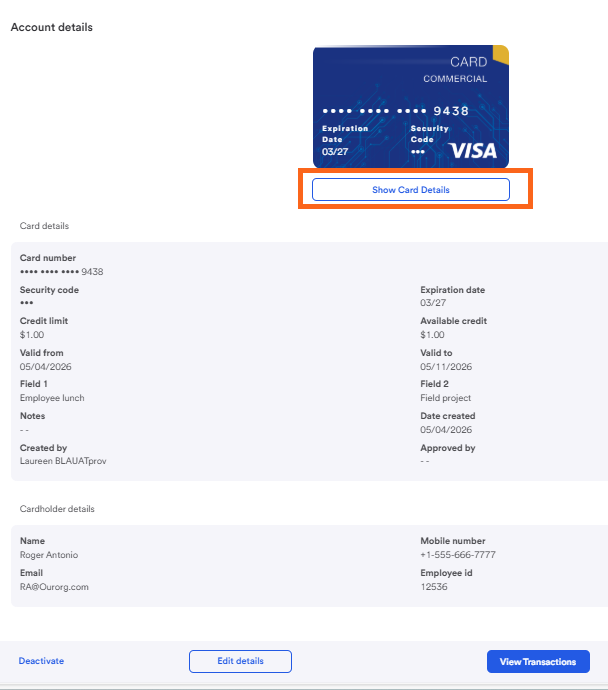
- Deactivate a card – If you want to shut off a card immediately to prevent new transactions, a Deactivate button is available in the card details. This will immediately shut off the card.
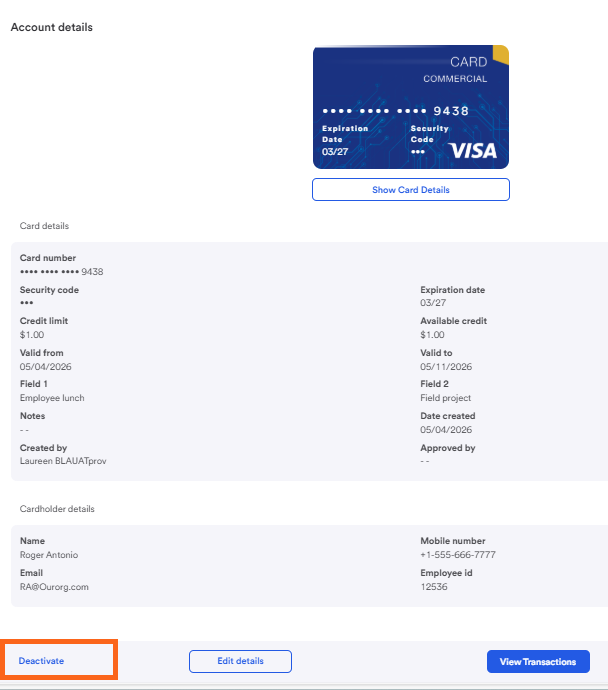
- Modify a card – In the card details screen you can click the pencil icon to unlock the ability to edit Provisioned credit limit and the validity dates.
Please note: If you adjust the valid from date to a future date, a user will NOT be able to add the card to their mobile wallet until that date.
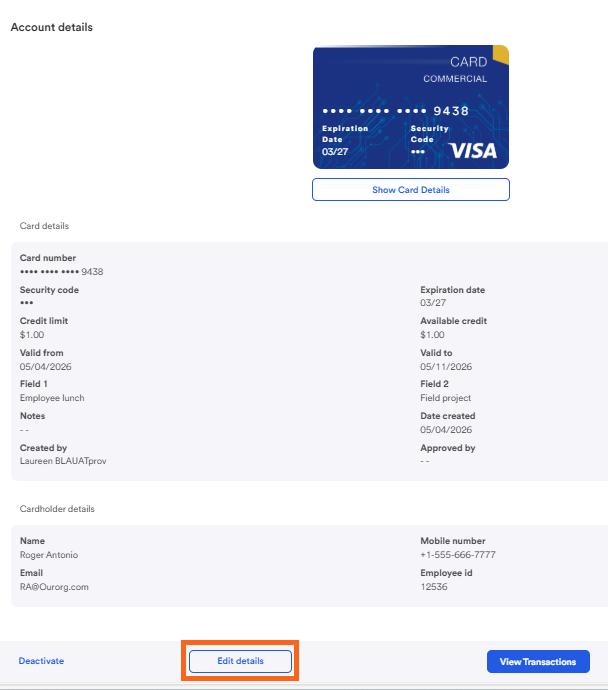
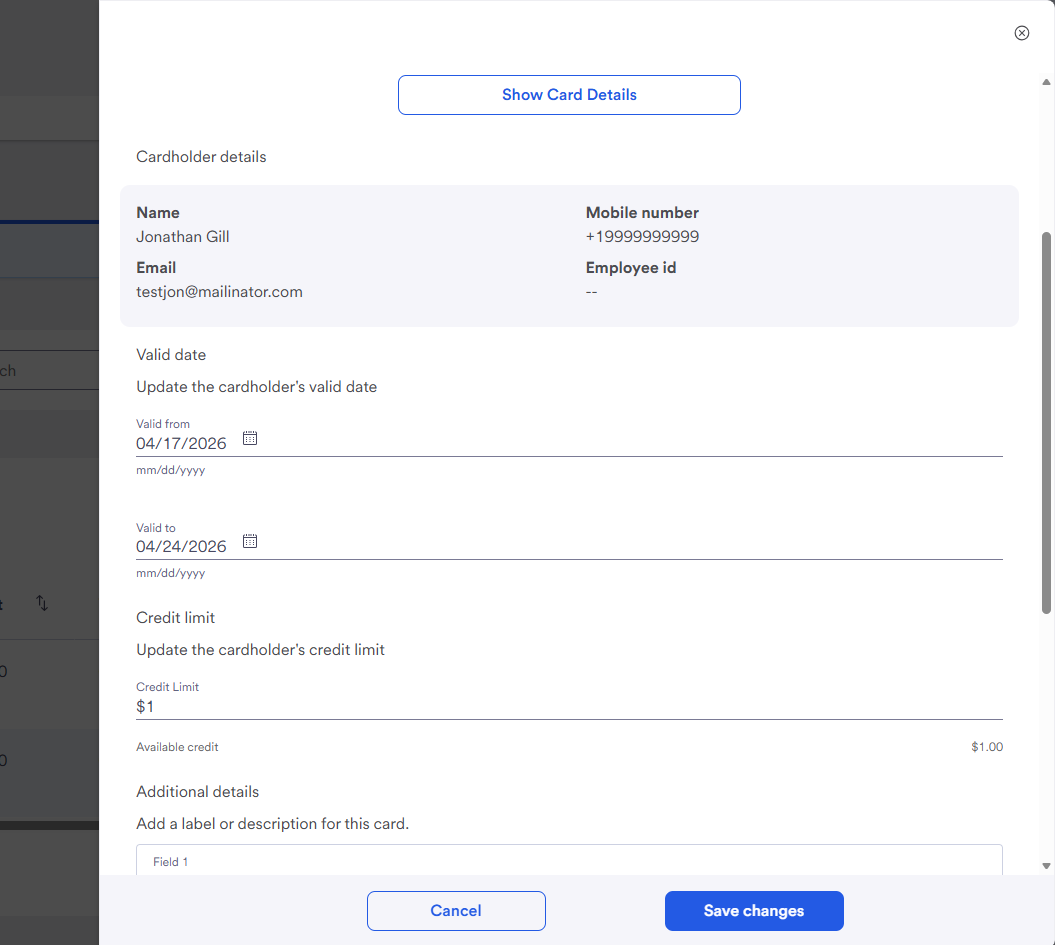
Table Functionality – As a provisioner you can perform the following functions at a table level:
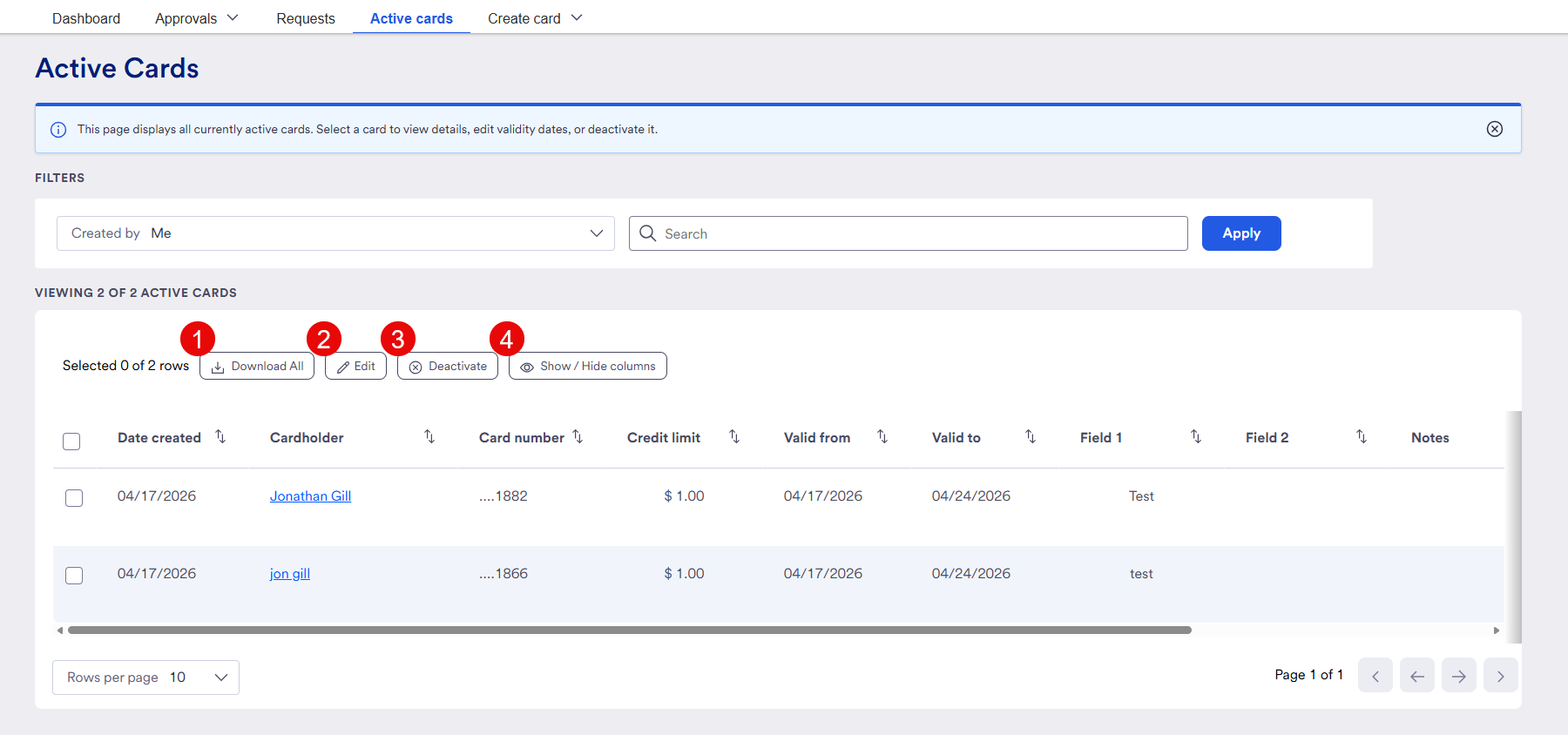
Download – You can download an excel sheet that contains the same data displayed on the table
Edit – unlocks the ability to edit credit limit, Valid from and Valid to
Deactivate – immediately turn off select cards
Show/Hide columns – allows a user to show or hide specific non-essential columns. At this time this will not save for the next time you login.