Provisioner Tasks User Guide
Work with Requests
Requests
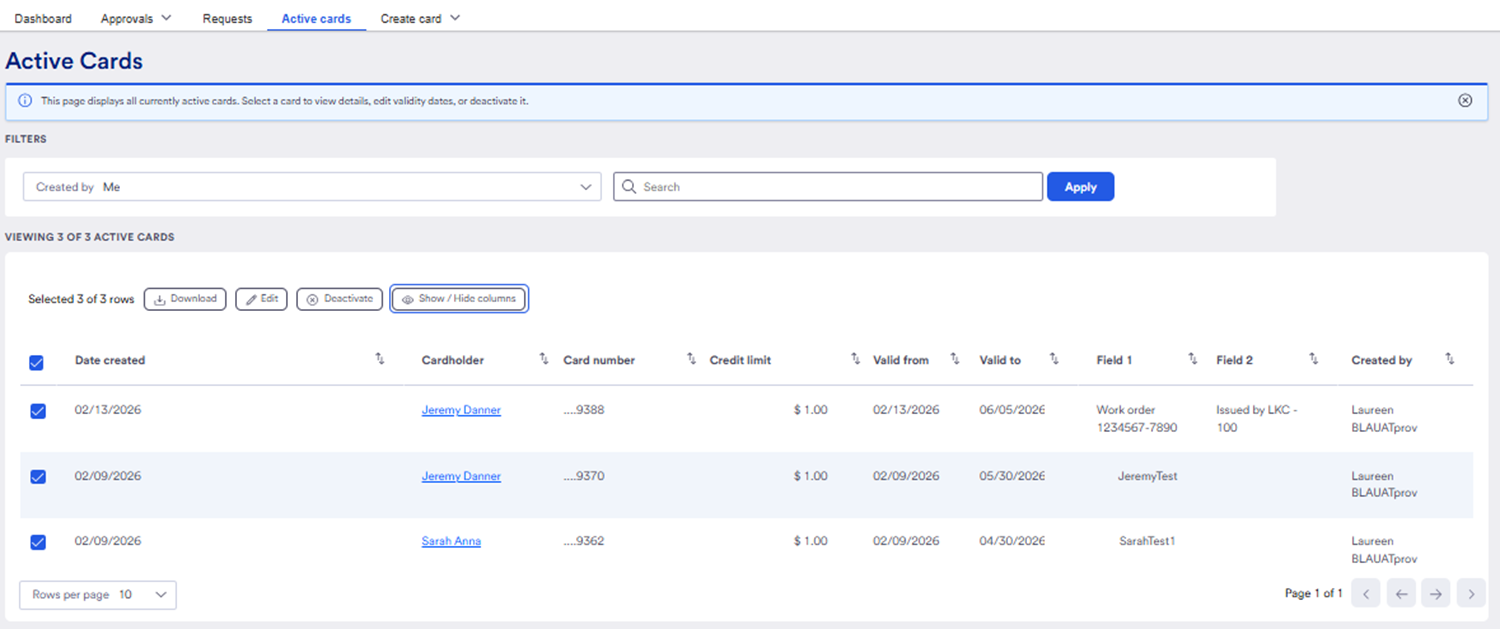
The Requests menu displays the requests that you work on.
It gives a provisioner information about
- Unfinished bulk card creation requests
- Cardholder submitted requests (if you are using that functionality)
You can choose which cards to see, all cards or cards created by me.
Some provisioners will not see the all cards depending on organizational settings.
- Click Created by down arrow
- Select Me or All
We have chosen by Me. This only shows the cards that I as a provisioner have created and received requests for.
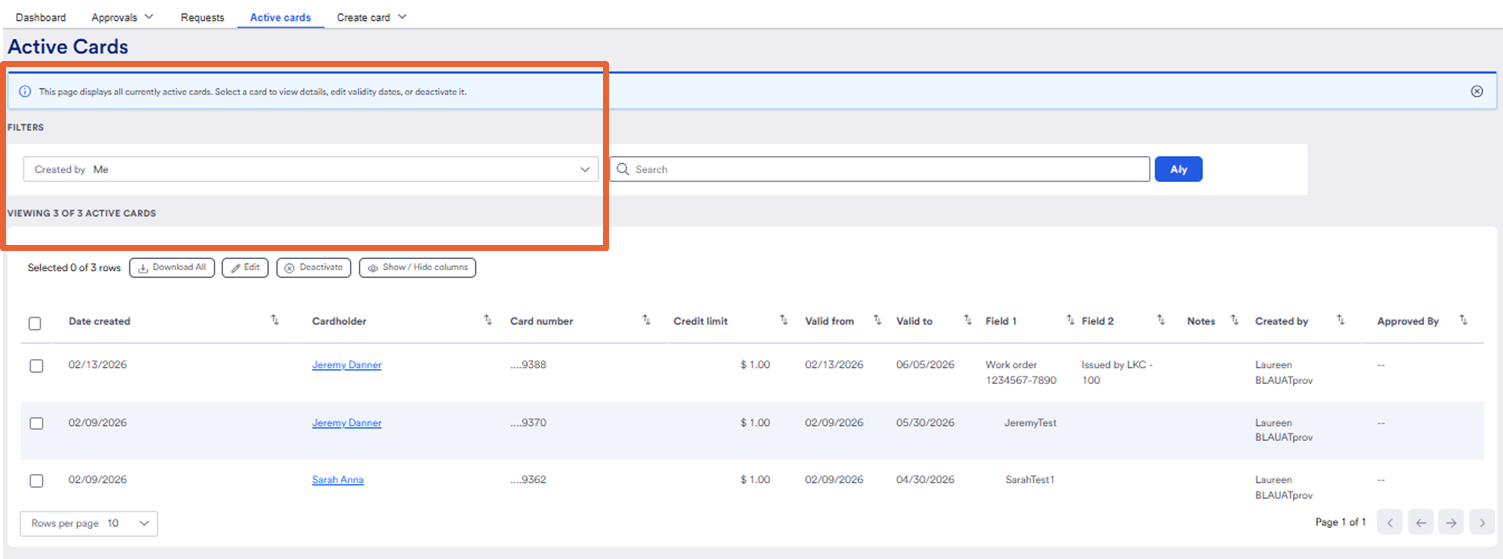
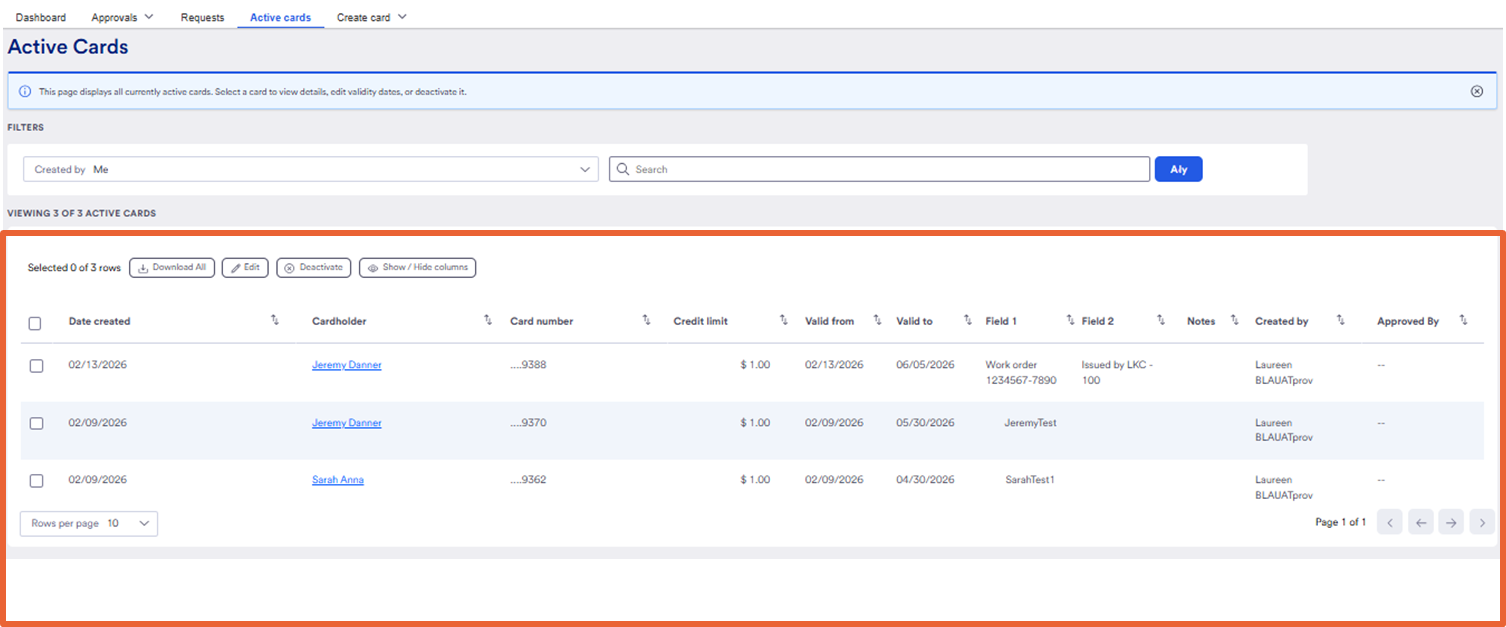
The information you will see is:
- Date created
- Cardholder name
- Last four digits of the card number,
- Credit limit provisioned
- Valid from date
- Valid to date
- Notes in the additional fields
- Provisioner who created the card
- Approver, if used
Click a column header to sort the card list quickly.
You can also use a keyword in the the search field which will search the content of all columns
- Click the magnifying glass.
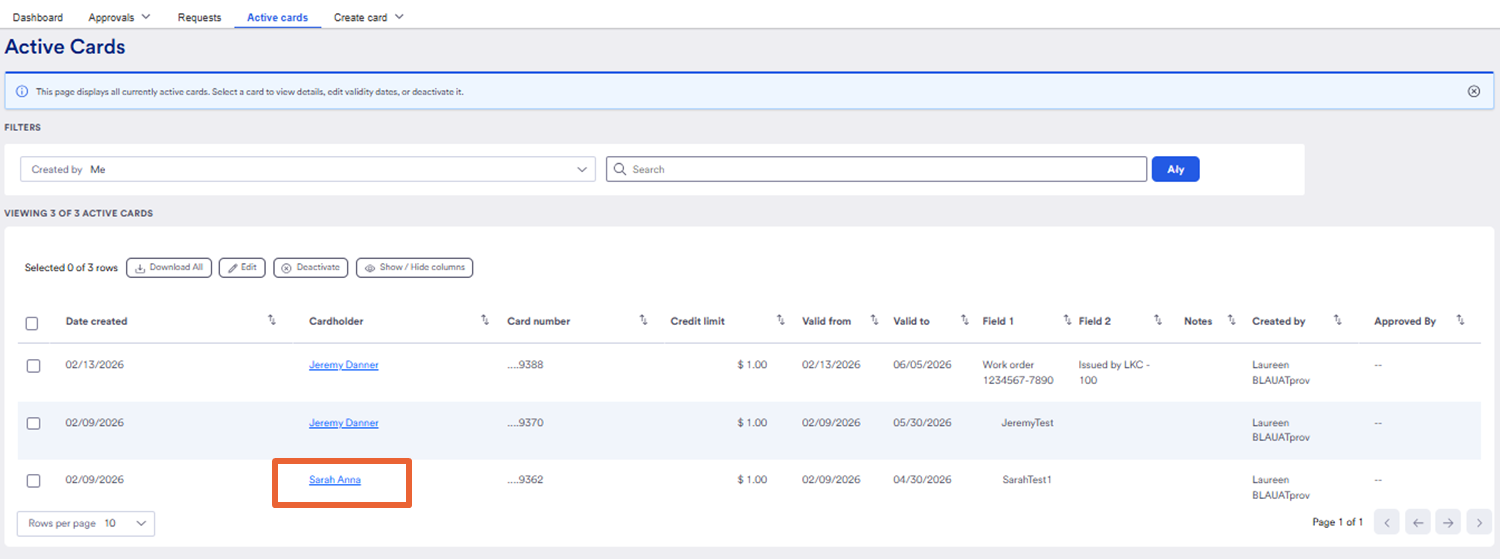
To view the details of a card,
- Click the name of the cardholder and follow the same steps we did earlier when creating the card.
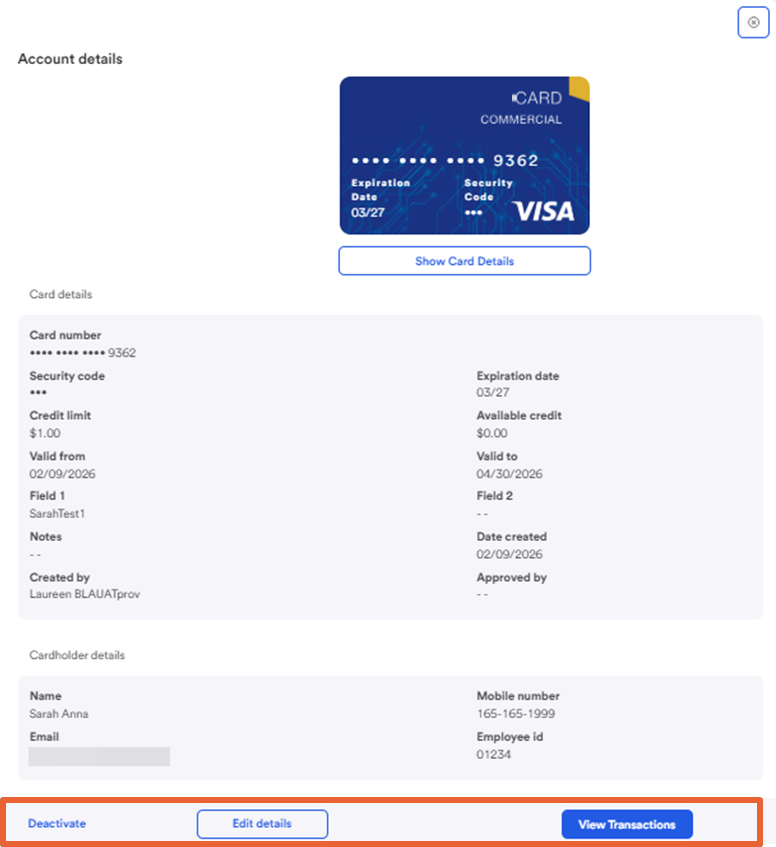
Account detail view opens.
You will have buttons:
- Deactivate
- Edit details
- View transactions
Here we are back on the active card view.
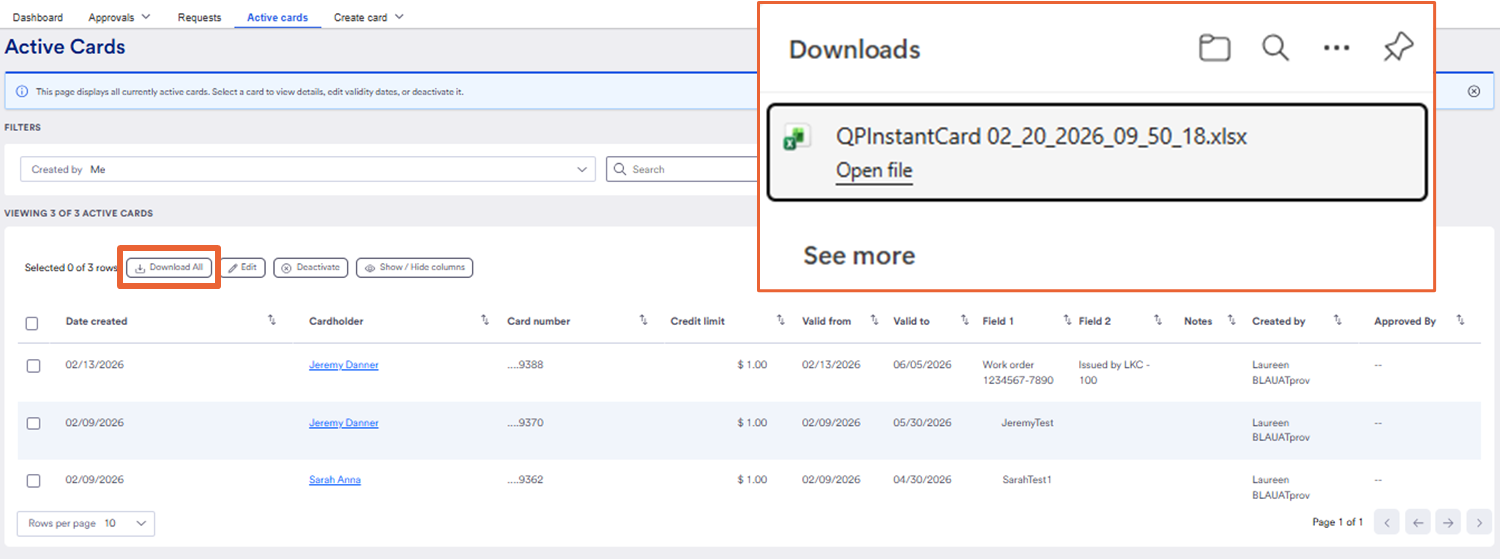
From here, You can download the card list. This file will give you a full list of all ACTIVE cards.
- Click Download list button
Your file will appear. It will be in Excel format.
You may need to make sure your pop-up blockers are off first!
- Click Open file to download and save to your computer.
xxxxxx
If you need to make changes to the card,
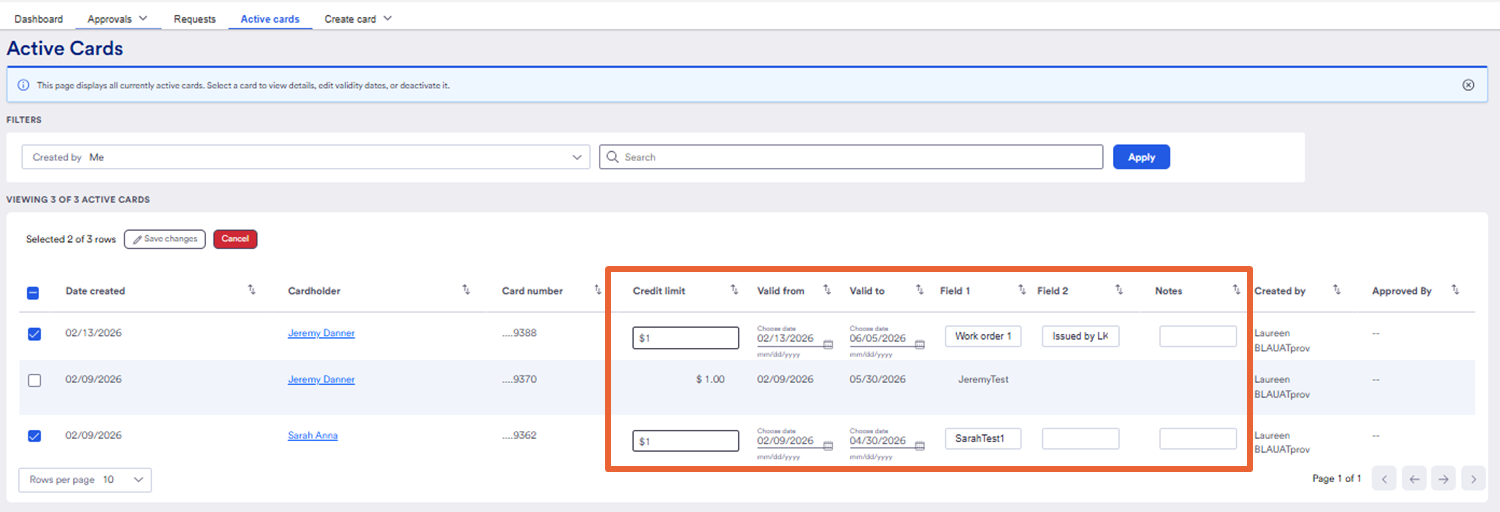
- Select Edit button.
Your selected cards will switch into edit mode, giving you fields to make your changes.
- Edit the fields as needed
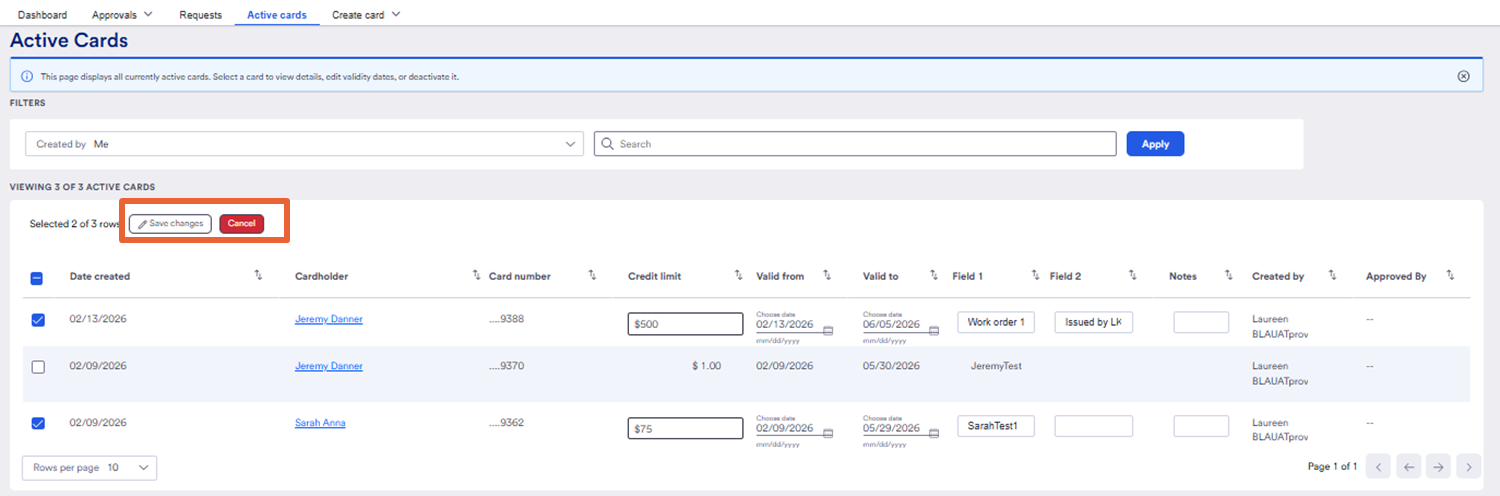
- Be sure to save your changes.
- You can also cancel your edits if needed.
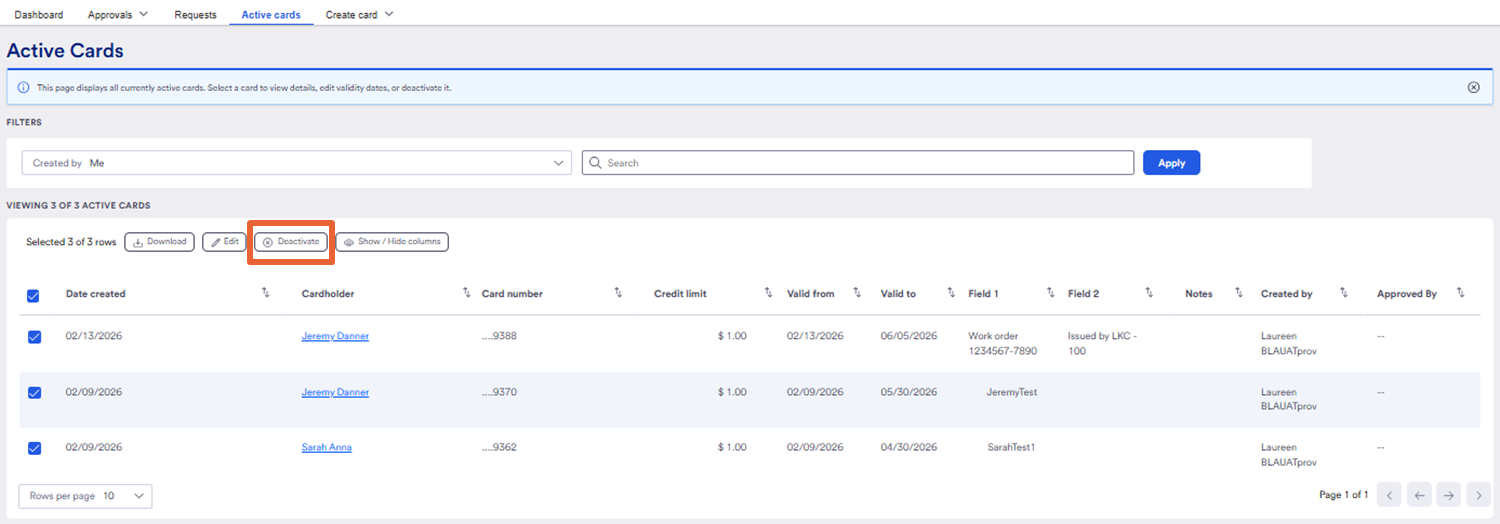
Need to deactivate a card? Maybe even more than one card?
- Click the check box for the card(s) you want to deactivate.
- Click the deactivate button.
Remember, You will also have the deactivate card button in the card details section
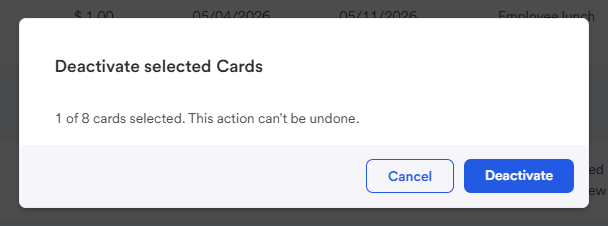
You will get a pop up giving you a moment to change your mind, because this action cannot be undone.
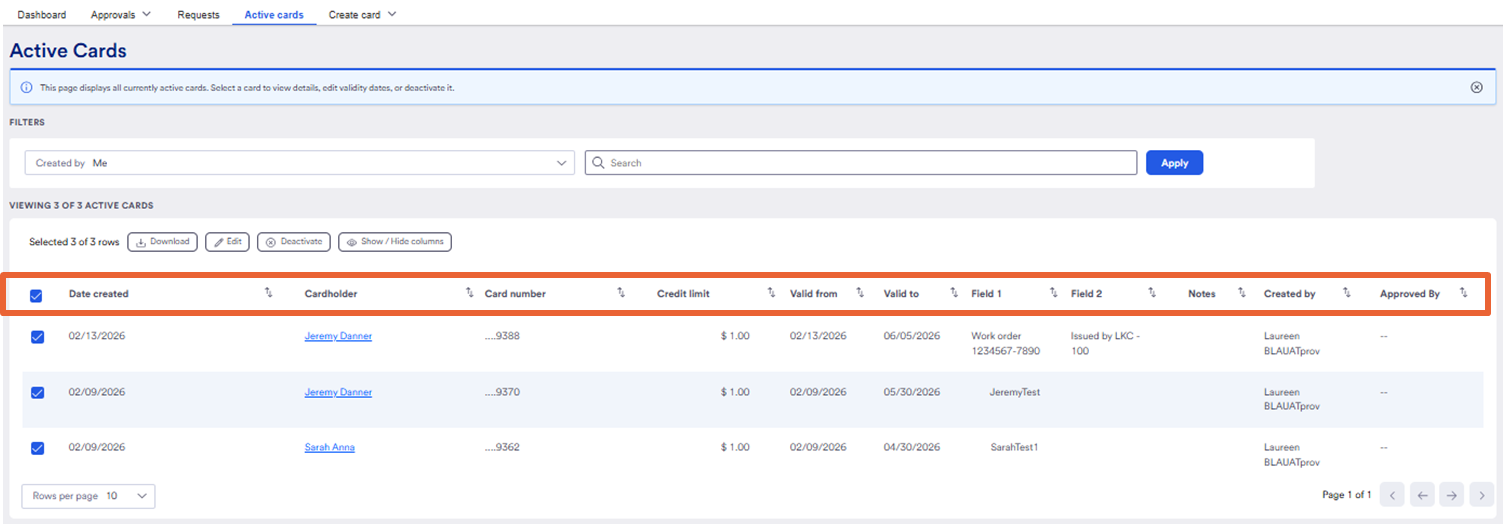
Sometimes a view doesn't appear in a way that you prefer.
Want to adjust your view of active cards?
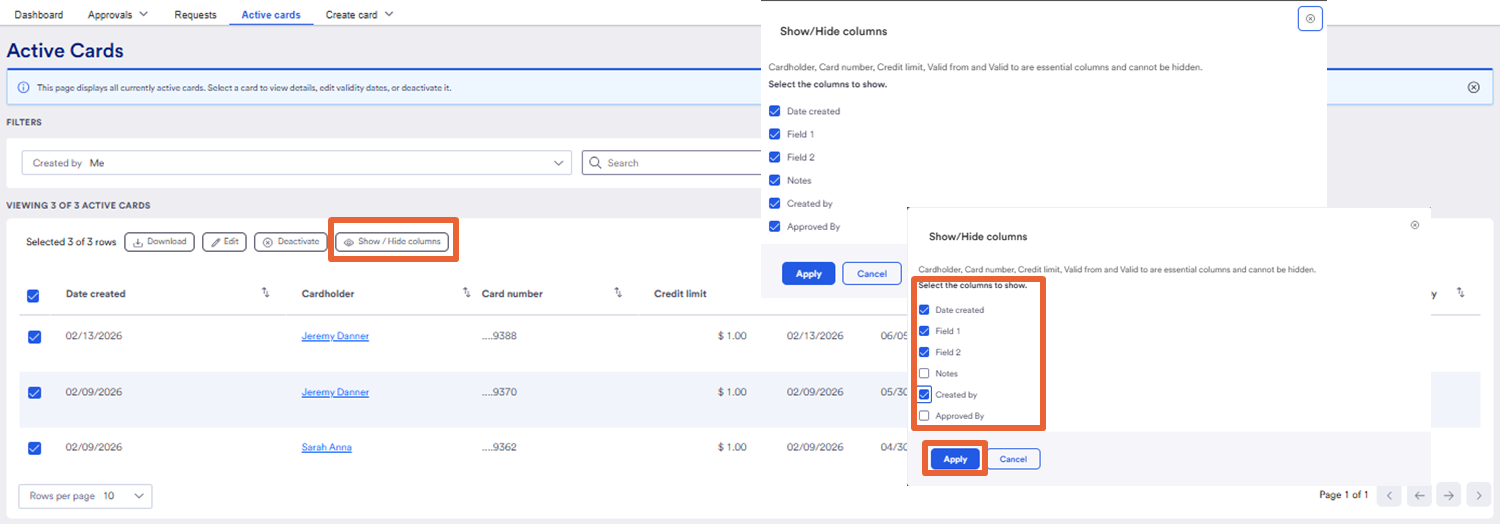
- Click on show/hide columns button.
A pop up with a list shows all columns selected by default. To make changes:
- Remove the checks next to the columns you do not want to see. Here we deselected Notes and Approved by
- Click Apply
Now the notes and approver columns are hidden.
- Use show/hide columns button to change them back to visible as needed.