Instant Card administrator tasks user guide
Company settings
Welcome to the tasks for the Card Company Administrator (Admin)
While the admin can hold other roles as well, as an admin they manage the settings for the card program.
Settings
Settings that can be managed are:
- Using approvers in the program
- Active card View settings for Provisioner and Approver roles
- Use of the request a card button for cardholder's
- Some changes to the billing address
In addition, administrators are the person who would contact that bank when appropriate.
To begin, the card program administrator:
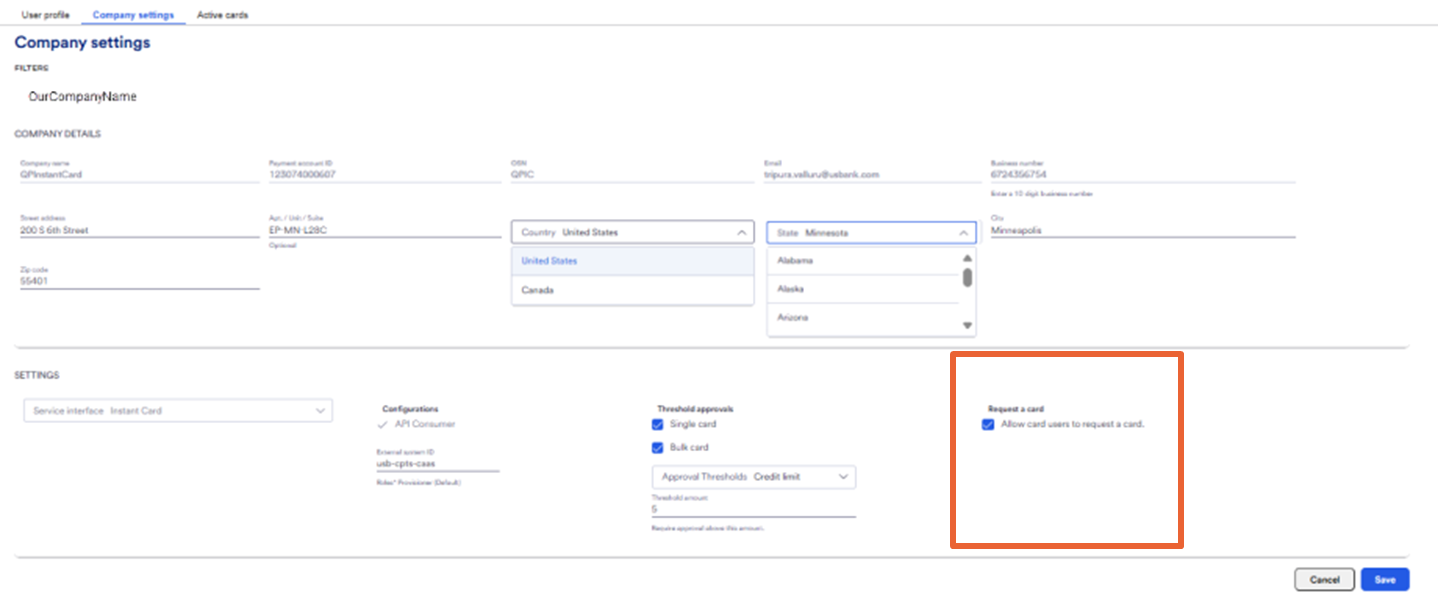
- Selects Company settings menu. Current settings are visible.
- Click Edit details
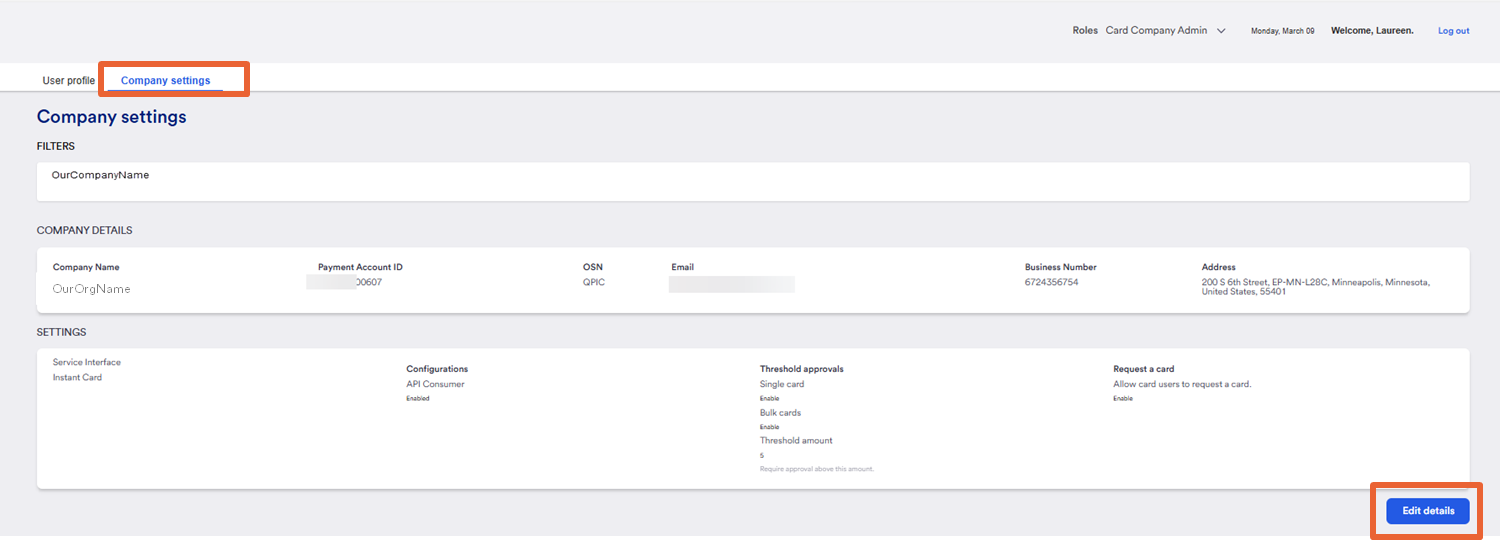
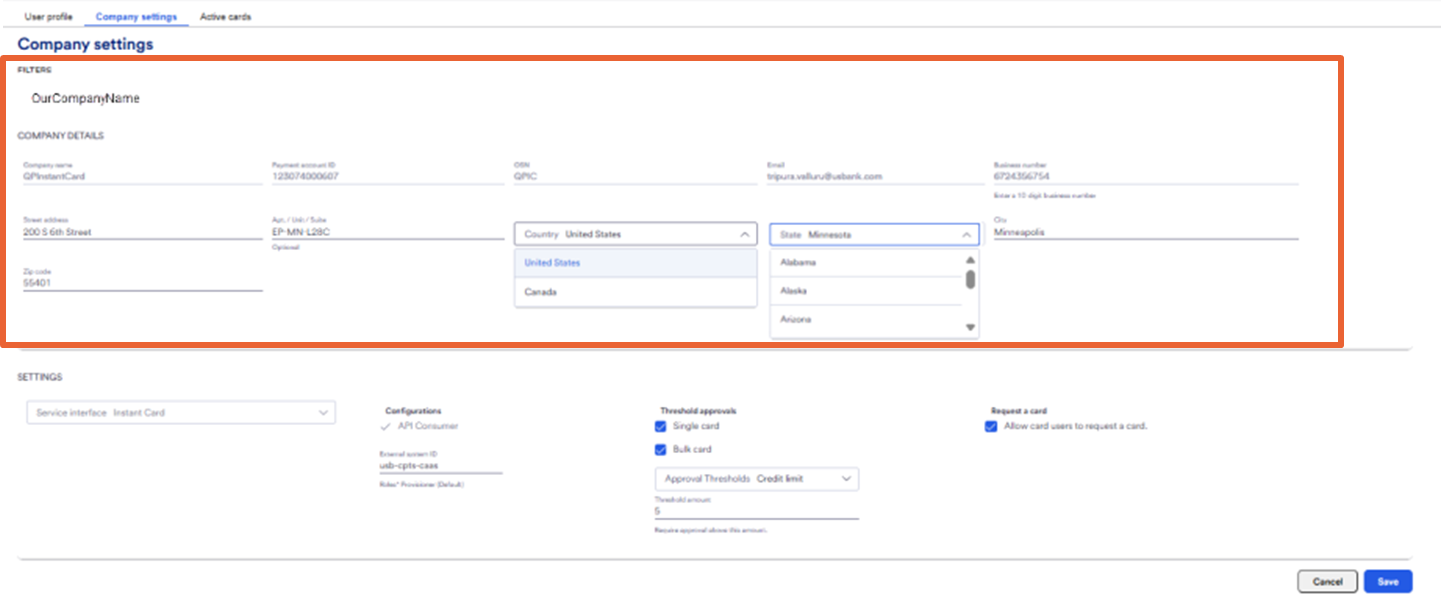
As an admin If you need to make a change to the payment account ID, OSN, Email, business number you must contact the bank.
- However, you can change some company details such as the billing country, state, and address.
- Inform the bank if you make any changes to billing address.
About billing addresses
Why is the billing address important?
It displays the billing address for users who can reveal the data to merchant as needed, and also add a card to their wallet for the tap and pay options.
Some merchants require this information. If cardholders enter the incorrect billing address, the transaction declines.
Remember, you cannot have a separate billing address for each card, they all use the same billing address.
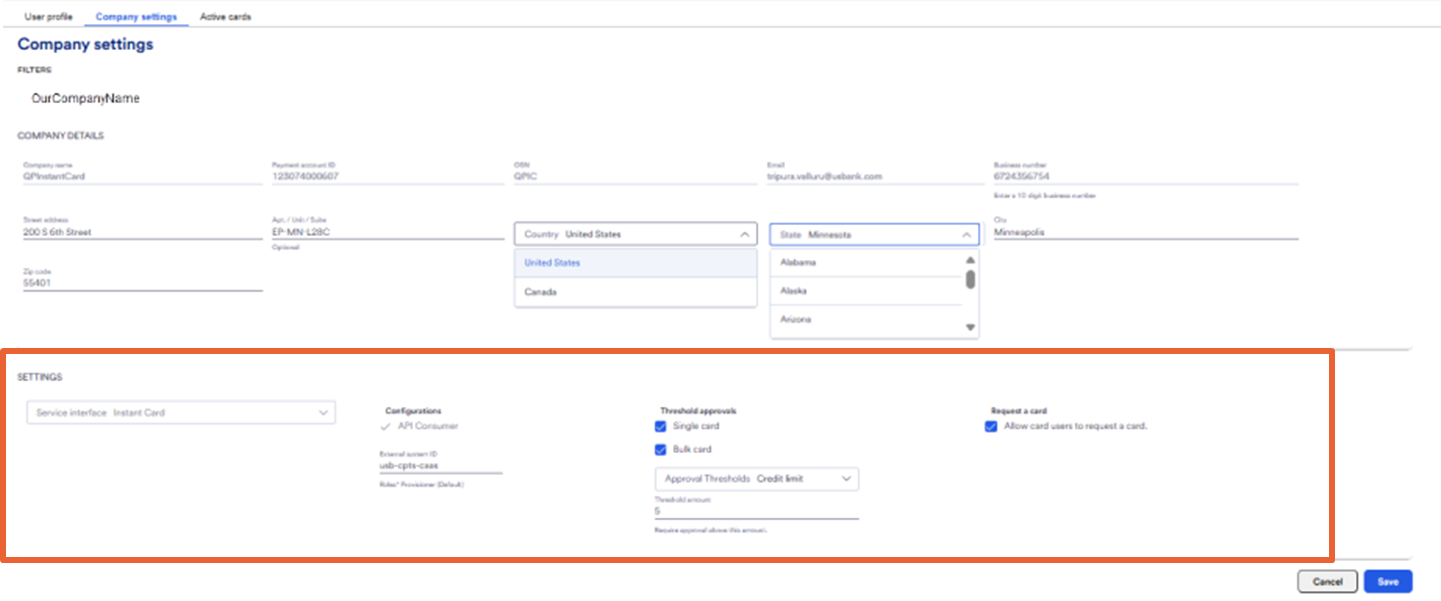
- Move down to the Settings area.
Data fields are visible for items such as type of card, configurations, threshold approvals and request a card.
Not all data fields are editable. You cannot edit type of card and configuration.
You can select:
- Thresholds for approval
- Request a card option
Thresholds for approval
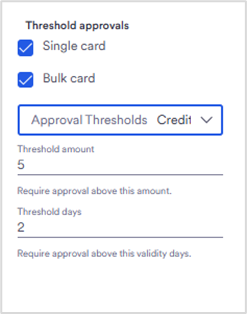
If your organization has chosen to use approvals, a Card company administrator can change the approval thresholds at any time.
When a card is provisioned, if the card amount (limit) or date timeframe meets the threshold criteria your identify, it will trigger the request to be sent to an approver before going to the cardholder.
You have the option to set these thresholds for:
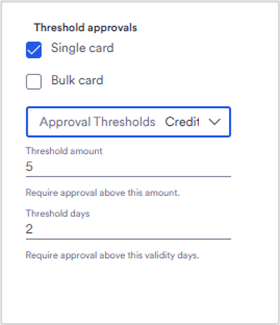
- Single card only,
- Bulk card only,
- or select both as we have here.
Next, identify your thresholds
- Click on the Threshold area and identify your preferences.
Approval threshold variables available are:
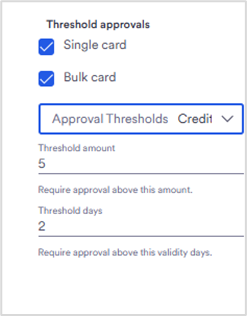
- Threshold amount (limit)
- You may want to simply put a credit limit threshold. Tip: If you want everything to go to an approver, put it the limit at 1$ here.
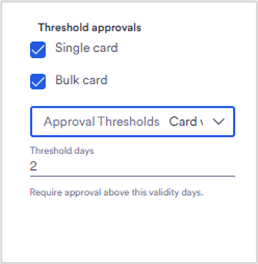
- Threshold days
- You might prefer to set the threshold to the card validity period. You can set a number of days which indicates when it may require approval for a lengthier time.
- Threshold amount and threshold days
- Use both parameters by choosing credit limit AND validity period so it takes both to trigger approvals
- Threshold amount OR threshold days
- Use both parameters, and either will trigger approvals
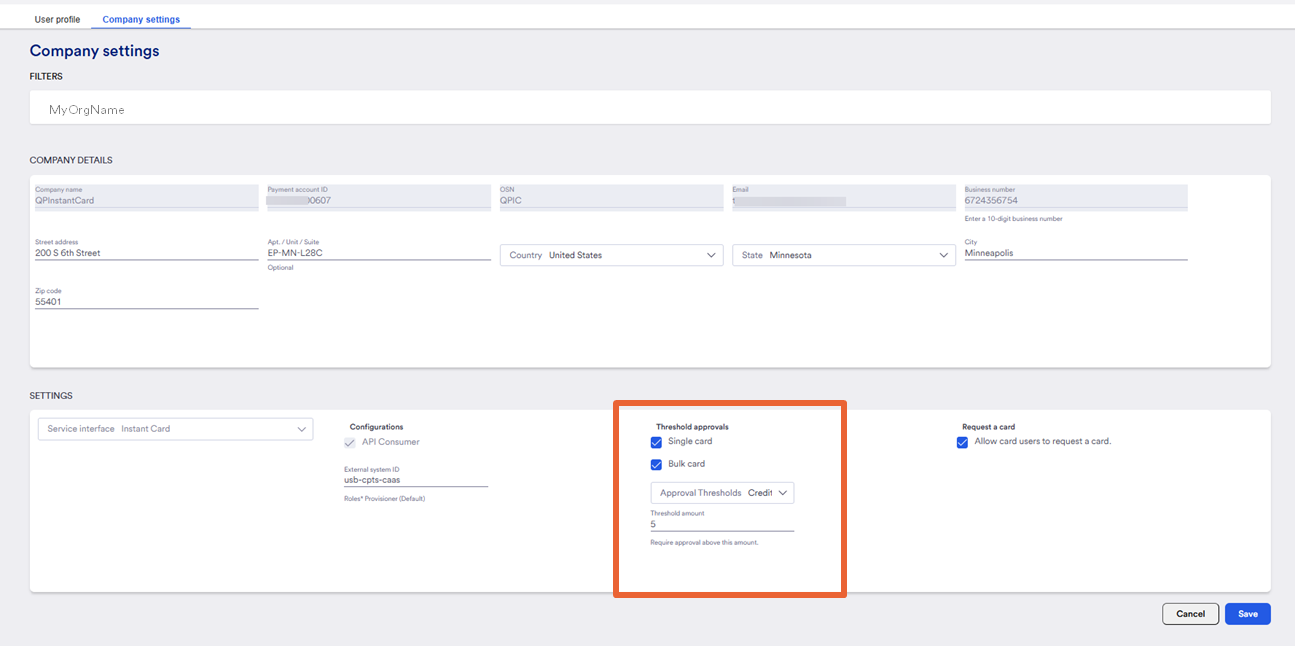
There is more than one type of threshold.
For example:
- • You might prefer to set the threshold to the card validity period. You can set a number of days which indicates when it requires approval for a lengthier time.
- Or you can use both by choosing credit limit AND validity period.
- •You can use either one if you choose credit limit OR card validity period.
- If the card request triggers any threshold, it will be sent to the approver queue.
- Once approved, card will go directly to cardholder.
- When rejected card appears as rejected in the active card list. It can be edited and adjusted if required.
- All approvers use the same queue.
Set the Request a card feature
Another option is to decide if you want the cardholders to have the ability to request a card themselves.
If you select to use this, it will place a Request card button on the mobile app screen.
- Cardholder enteres their requested amount, dates and provisioner and sends request.
- The requests are visible on the dashboard under the Requests menu.
- Once provisioned, the process is the same for approvals if used.
This feature will be visible immediately to your cardholders.
Be sure to save your changes when you are done!
Best practices for a card company administrator:
Inform your provisioners ahead of time that they will receive an email with what they need to setup the mobile app.
Be aware of the approval thresholds and how to use them.
What can a company card administrator NOT do?
Create another card company administrator profile. Only the bank is able to set that up. Contact the bank for assistance.
Card company administrators cannot create cards for themselves.