Instant Card approver tasks user guide
Approver Tasks
Using approvals for your requests is something that can be turned on or off by your card company administrator. (Admin)
Approval thresholds are set by the card company administrator to trigger when a request needs to be reviewed and approved.
The admin also creates a profile for each person they want to have the ability to approve.
- Approvers will use the web portal in order to do any approvals. See user guide or video to set up portal.
- Approvers will use a common queue to find, approve or reject card requests.
- If you are an approver, you will not be able to approve any cards created for you.
Notifications:
An approver will receive an email for each time the Send for approval button is clicked.
- If all cards are selected by the provisioner before they send for approval, they will receive ONE email with all cards in it.
- If Provisioner sends in smaller batches, they approver will receive one email per batch, or per card if sent individually.
Example of the approver email notification
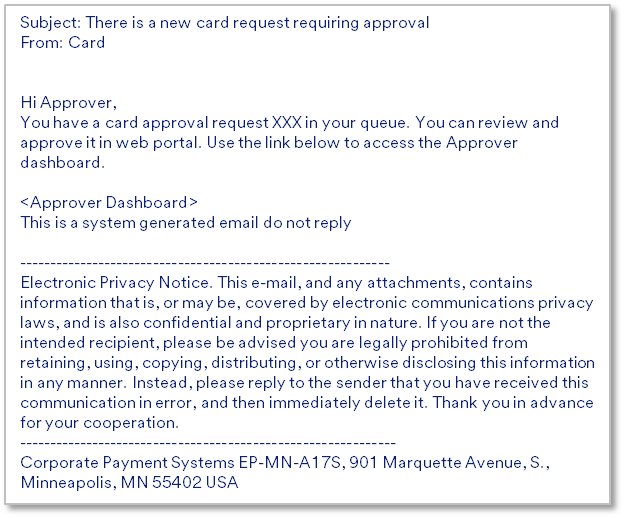
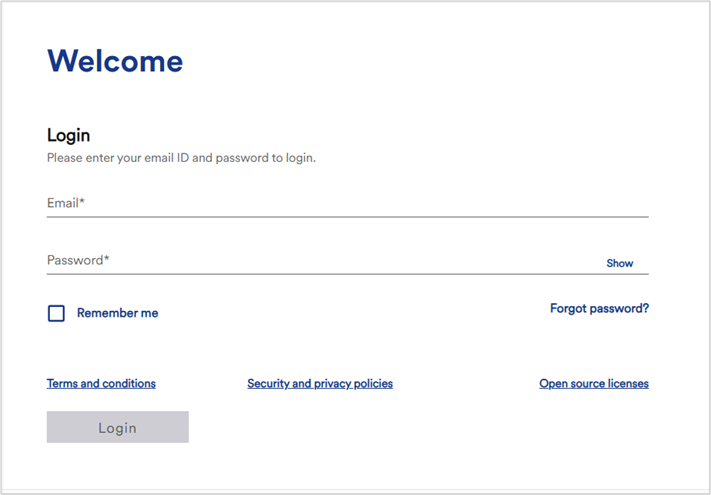
Use the email links to set up and log into web portal. You will only need to do set up once.
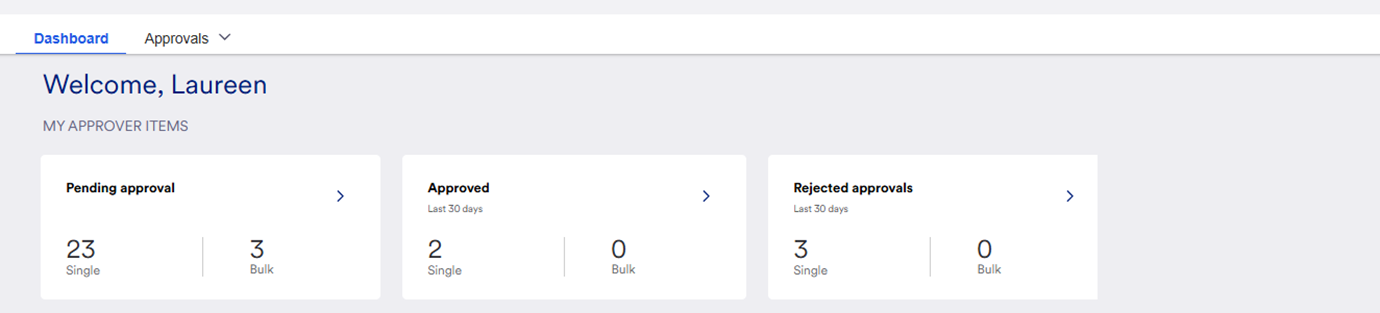
The dashboard is visible. It will contain the tasks your role can do.
This is the Approver Items.
- An approver can quickly track card activity over time.
- They can click the Pending Approval or My Approvals tab to see the cards waiting for approval.
- They can click the Rejected tile to see the card requests that they or another approver rejected.
- They can click the Approved tile to see the cards that have been approved.
When the approver receives the email that an item is waiting for their approval, the approver clicks the link in the email.
That takes the approver to the dashboard. From here they can see:
- The My Approver Items
- Dashboard and Approvals menus
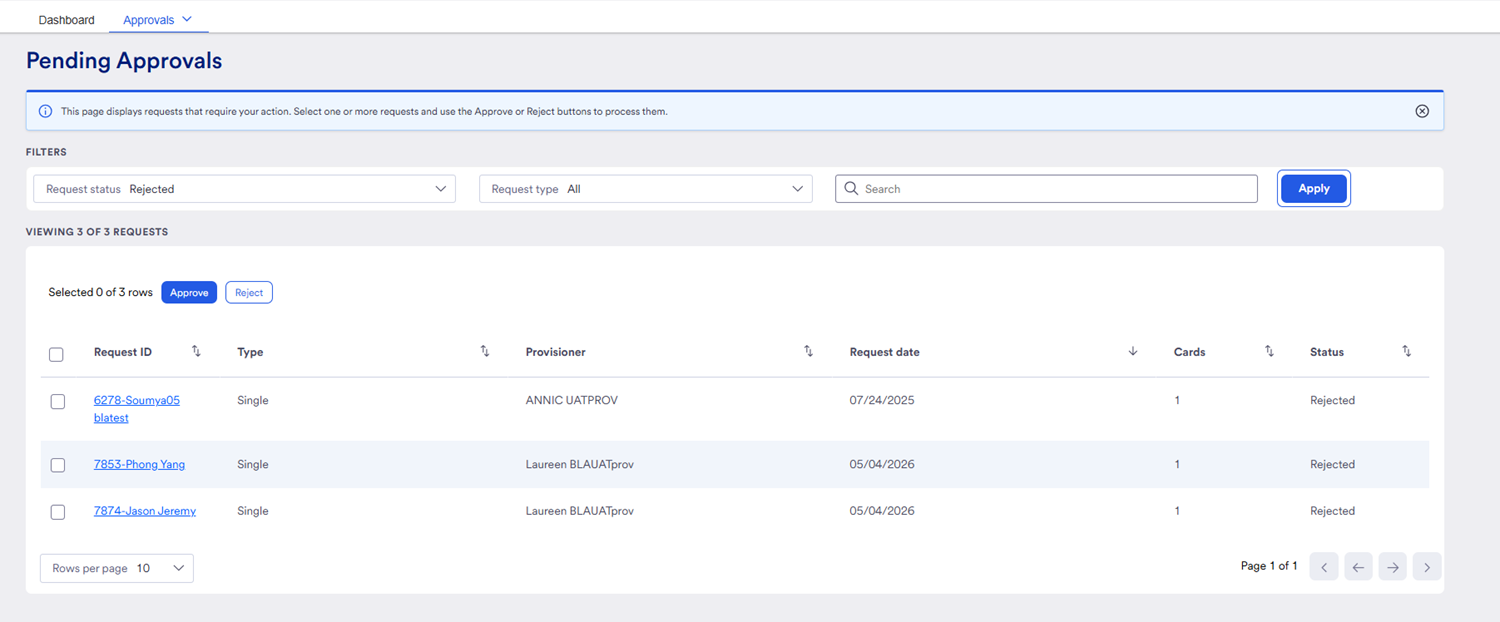
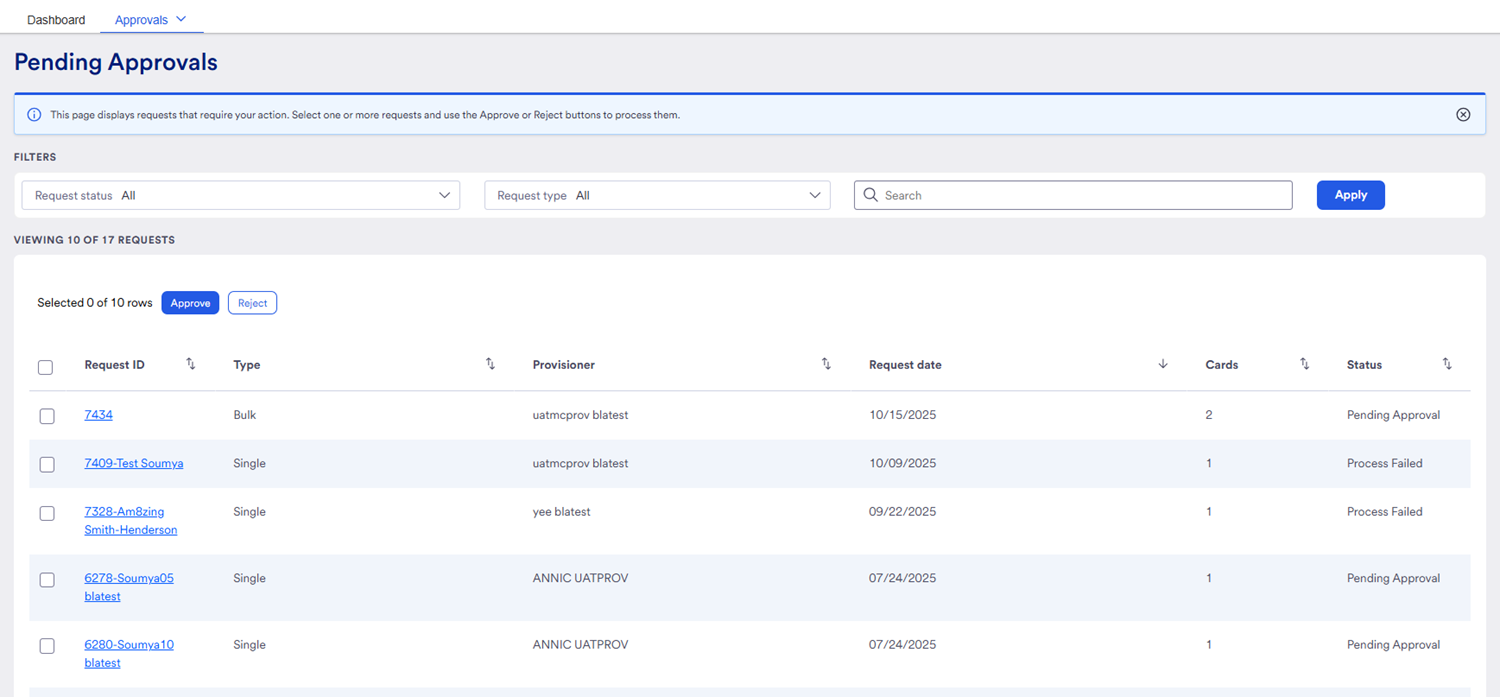
- Click the Approvals menu to view approvals waiting for review.
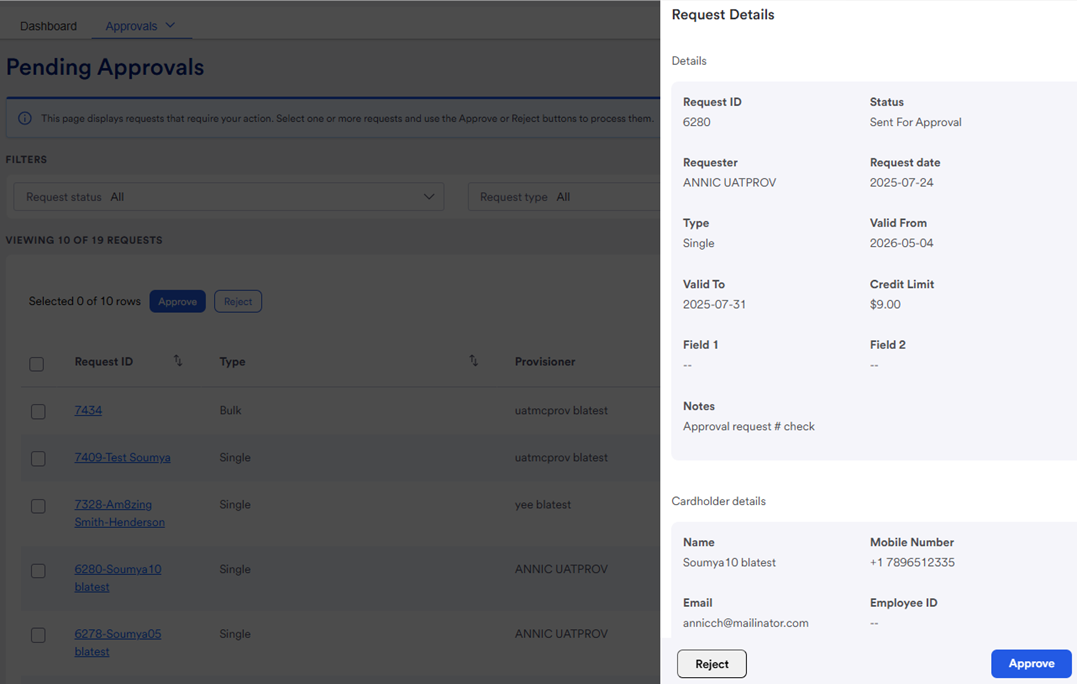
Here we have an example of the side panel that opens to show details.
Review as needed. Approvers can approve or reject from this screen as well.
- Use the x in the upper right to close the panel as needed.
Approvers do not have the ability to deactivate a card.
Once approved, the card is created and:
- An email is sent directly to the card recipient to notify them of a new card. The email also contains with links to download the mobile app.
- An email is also sent to the Provisioner.
- The Provisioner can then view the card by selecting the Active Cards menu bar option or the Created Cards tile.
Card rejected?
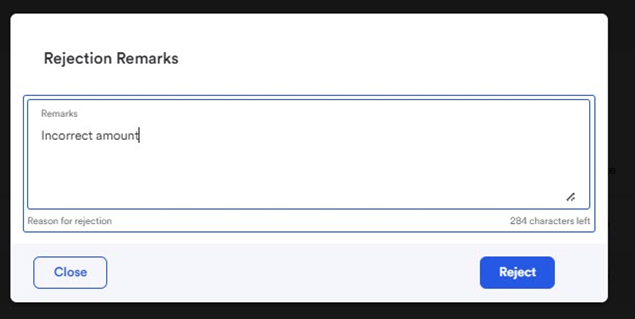

- The Approver must provide a reason which will be visible to the Provisioner.
- The card request is moved to the Rejected list tab.
- An email is sent to the Provisioner indicating the request has been rejected.
- The Provisioner can view the card by selecting the Rejected tile or the Rejected tab on the My Requests menu bar option.
- The Provisioner can view the rejection reason by clicking on the appropriate item to reveal the card detail.
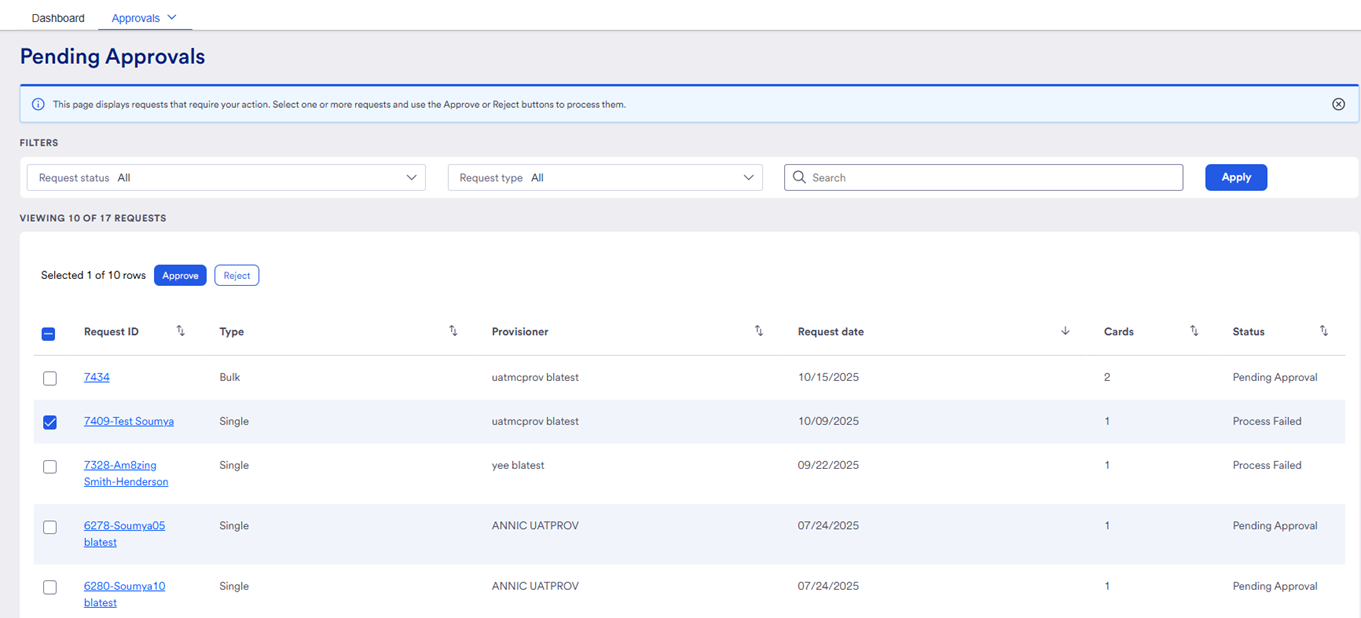
- Type rejected the Request status field and sort the list by rejected approvals,
- You can also type in a user name in the search field.
- Be sure to click Apply!