Instant Card mobile app setup user guide
Set up Mobile App
User registration: mobile app
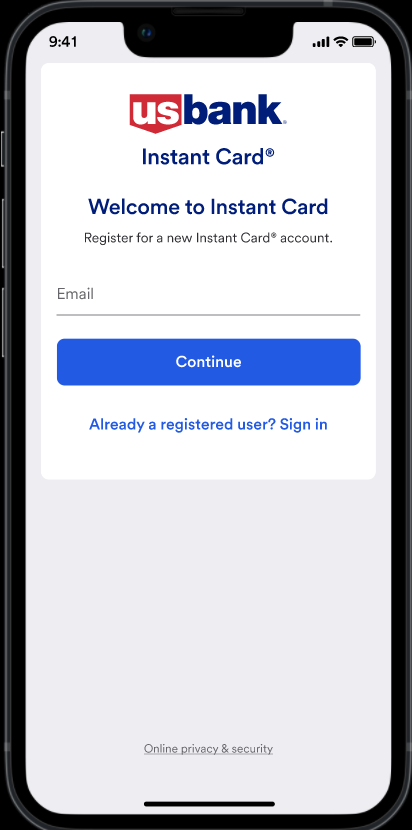
As soon as they download, install and open the mobile app, the user gets a prompt to enter their email address. They should use the same email address that their provisioner specified when they created their card.
If the user is already registered, they can bypass this screen and go straight to login by tapping Already a registered user? Sign In.
Even if the user is not in our database, they can still move forward to the terms and conditions screen. This option is allowed for application security purposes. So, if the user claims the registration process is not working, check the Administrator portal to see if they exist in our system.
Step 1: Login screen
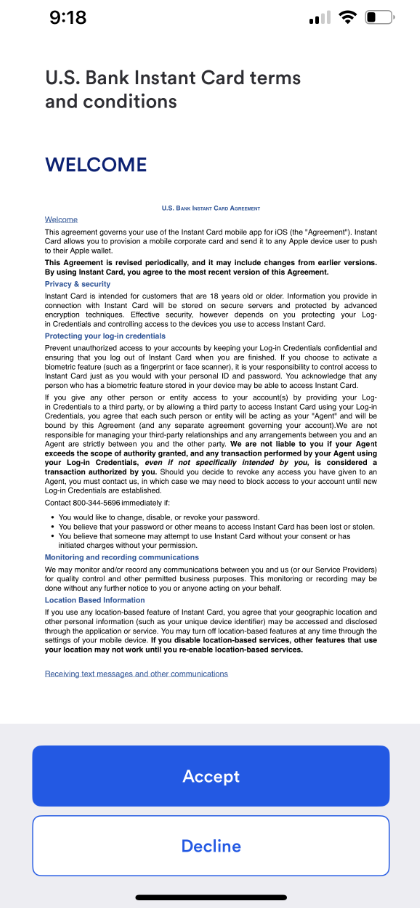
Step 2: Terms and conditions
The second screen in this flow is the terms and conditions. The user must accept the terms and conditions to complete the registration.
A user can zoom on the screen to enlarge the text display.
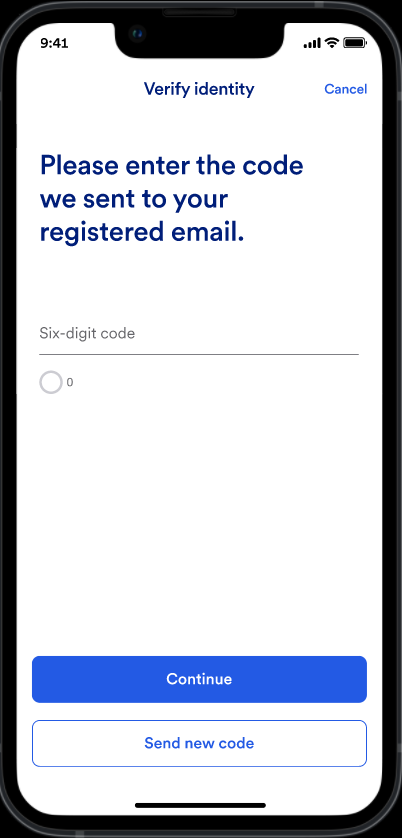
Step 3: OTP email
After the user accepts the terms and conditions, then the app sends an email containing an OTP to the card user’s email address.
If the user does not have a provisioned card and thus a record in our database, then the app does not send an email message.
The card user has 15 minutes to retrieve the OTP and enter the code in the Six-digit code field. If the card user misses this timer, then the app enables the Resend OTP button, and the card user can request another OTP. A code is active for up to 15 minutes once it is sent.
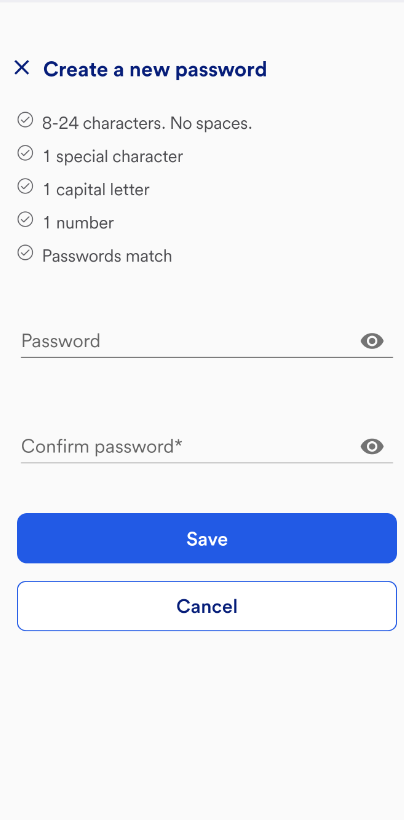
Step 4: Password creation
The final screen of the registration flow is to create a password. The password must be at least 8-15 characters containing at least:
1 special character (insert accepted characters)
1 capital letter
1 number
1 regular character
After the card user creates their password, the app directs them to the login screen to open the app. For more information logging in, refer to 8-15 characters.
1 special character, must be one of the following: !$%&*
1 capital letter
1 number