Instant Card administrator tasks user guide
| Site: | Access Online Learning |
| Course: | Instant Card |
| Book: | Instant Card administrator tasks user guide |
| Printed by: | Guest user |
| Date: | Sunday, September 20, 2026, 6:30 PM |
Description
Learn how to create profiles and manage company settings.
Create profiles
As the Card Company Administrator you are the one who interacts with the bank as needed and set up the settings for your organization based on the information gathered during implementation.
As an administrator, you can
- Set up profiles for provisioners, and approvers,
- Set approval thresholds for organization
- Maintain billing address for program
- Provision cards
- Deactivate cards
- Report on all active cards.
To accomplish these tasks, you will use more than one system
- Web portal- Administrators and provisioners use the web portal to manage the program, set up provisioner and approver profiles, provision new cards and view or edit existing cards
- Mobile app- Cardholders do all their activity for virtual card in Mobile app. Provisioners can also use the mobile app to deactivate and provision cards.
- Access Online – Admins and provisioners use to view and download reports
When you are designated as a Card Company Administrator, the bank sets up your profile for you with the appropriate permissions.
Once that is completed, you will receive an email with directions on how to load the web portal software and get started in the systems.
If you need more information, see the Set up web portal user guide.
Creating Profiles
Once in the web portal you can create profiles for other users. You cannot create additional administrative roles, Card Company administrators can only be set up by the bank.
You can set up:
- Provisioners- The role that will create the cards
- Approvers- An optional role if you plan to use approvals for the card requests that meet certain thresholds.
To create a Profile:
- Open the web portal.
- Click on the User profile menu
You will arrive on the dashboard view.
Use the roles dropdown to switch from Dashboard to Card Company Administrator view.
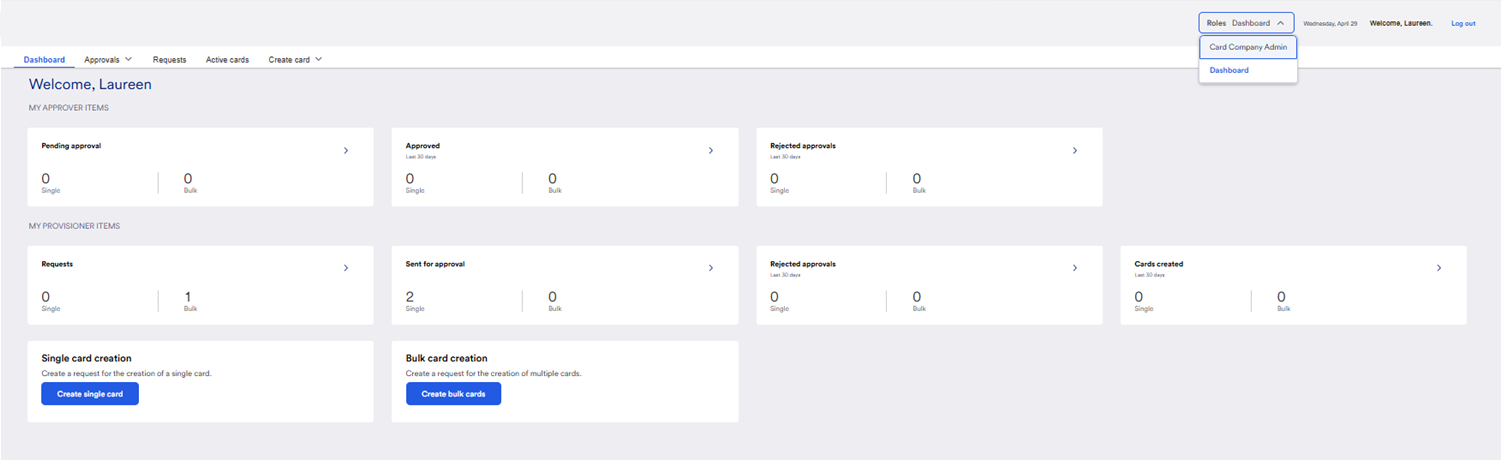
In the Card Company Admistrator view you will find the menu options of:
- User Profile
- Company settings
- Active cards.
You will land on the User profile menu view by default. You can also click User profile menu if needed.
In the user profile area, you can use search to find other profiles if needed.
Use the Job role field or the Search field to look for already existing profiles. It is always a good idea to do this first, so you do not accidentally create multiple profiles.
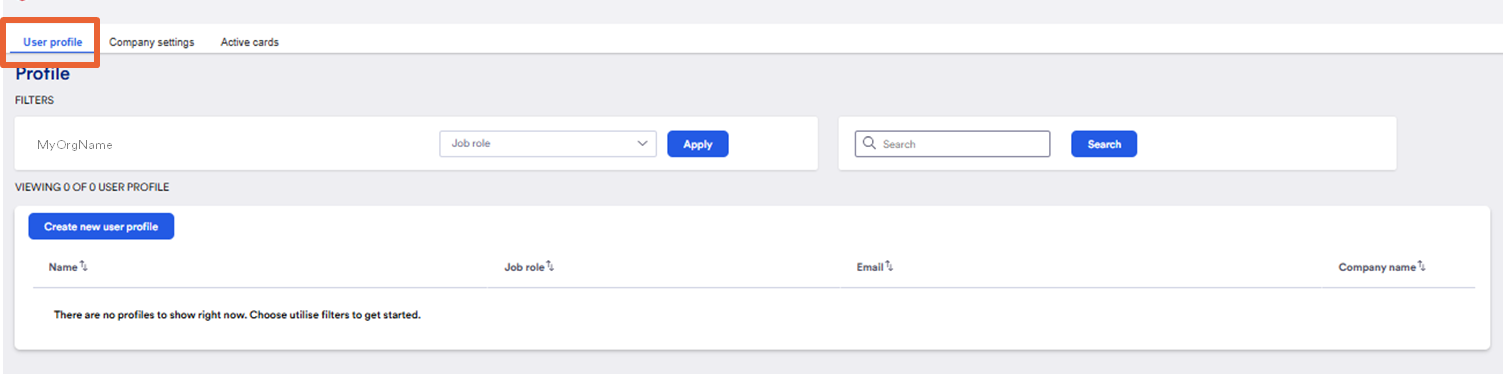
- Click Create new user profile button to start a new profile.
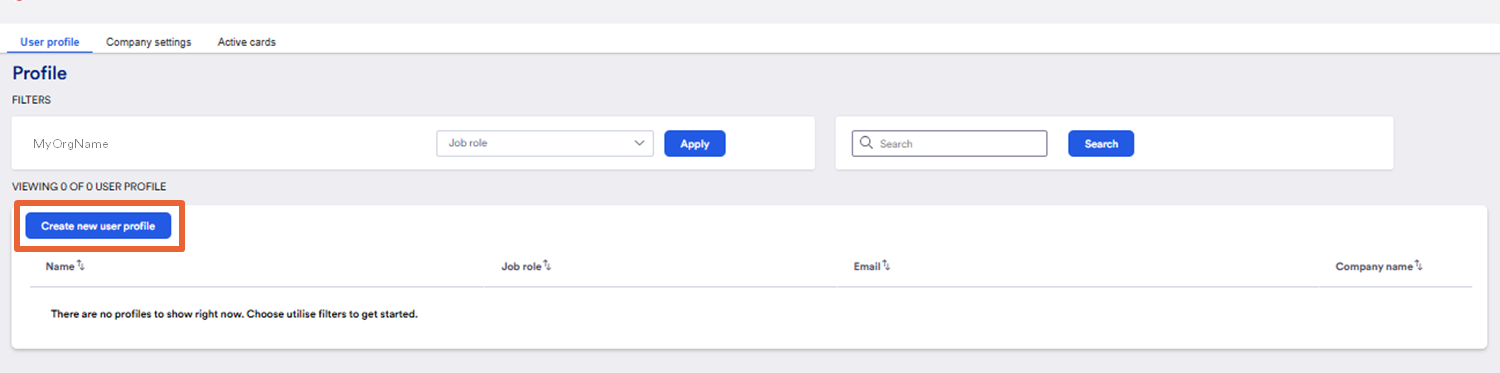
The Create a single-user profile view is visible.
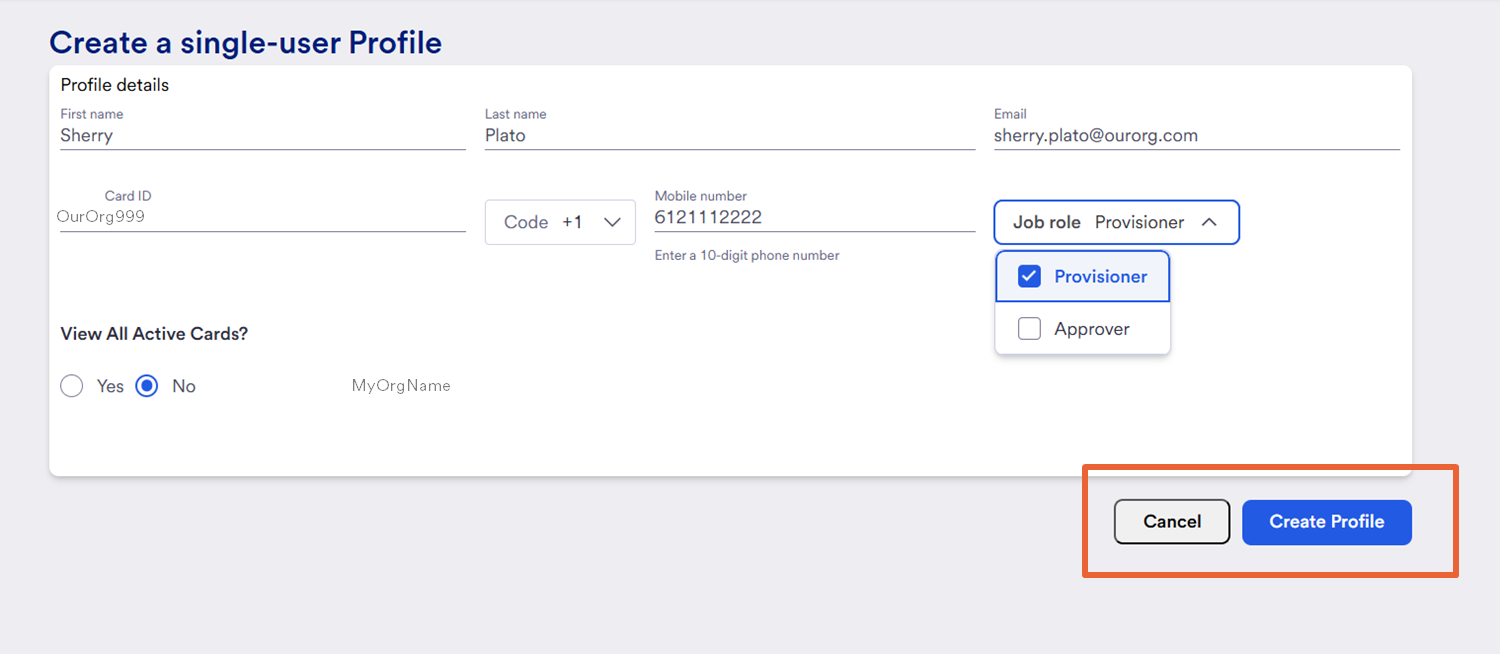
- Enter the person’s information such as name and email.
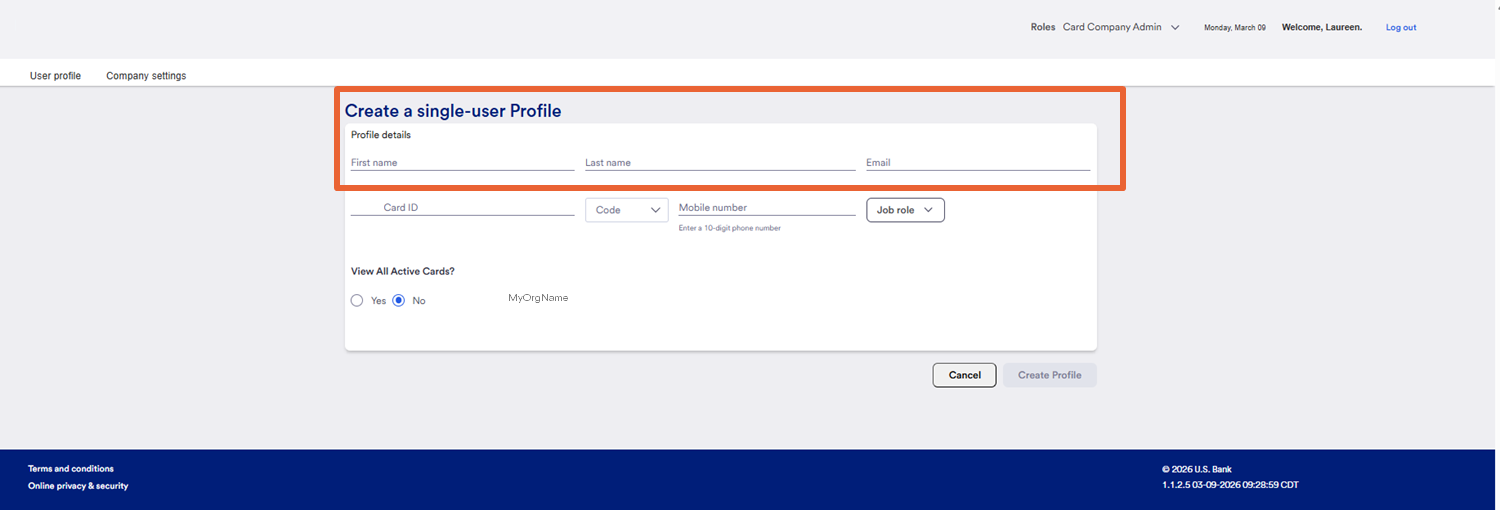
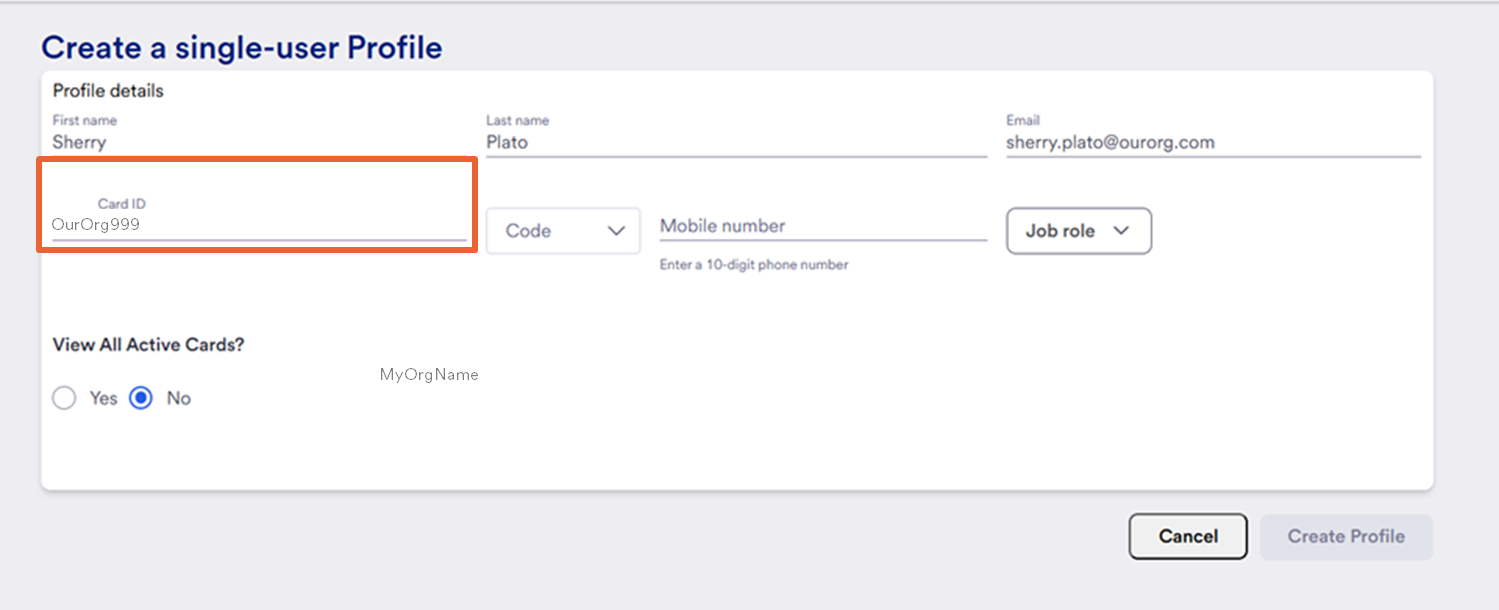
- Enter the Card ID. This will be their profile number. Each number must be unique and is created by your organization.
A common method of creating the number is to use an abbreviation of your organizational name, and then add a number.
For example, we have used MyOrg999. You can then count down (or up) so the next number could be MyOrg998. This is the profile number, not a card number.
Tip! Take note that you cannot have any spaces in the Card ID number.
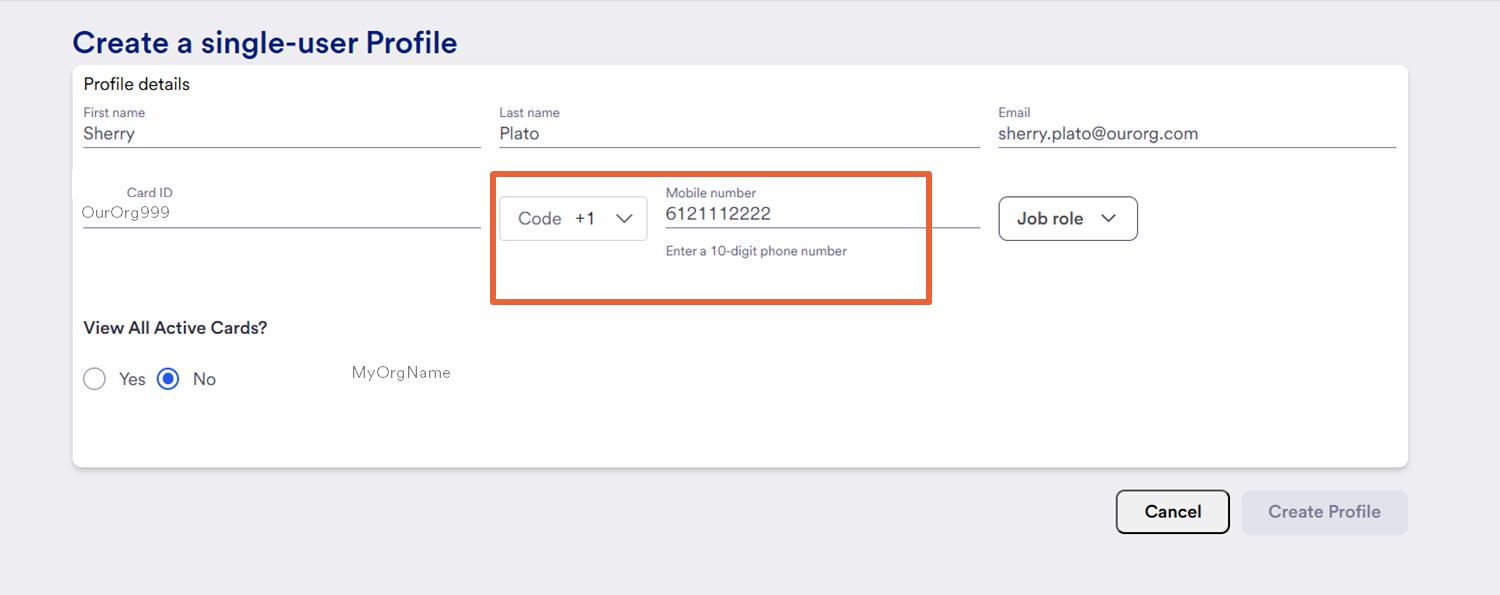
- Enter their Mobile number.
When you input a mobile number, the code +1 will appear. This is the international code that represents North America.
Then enter the 10 digit mobile phone number.
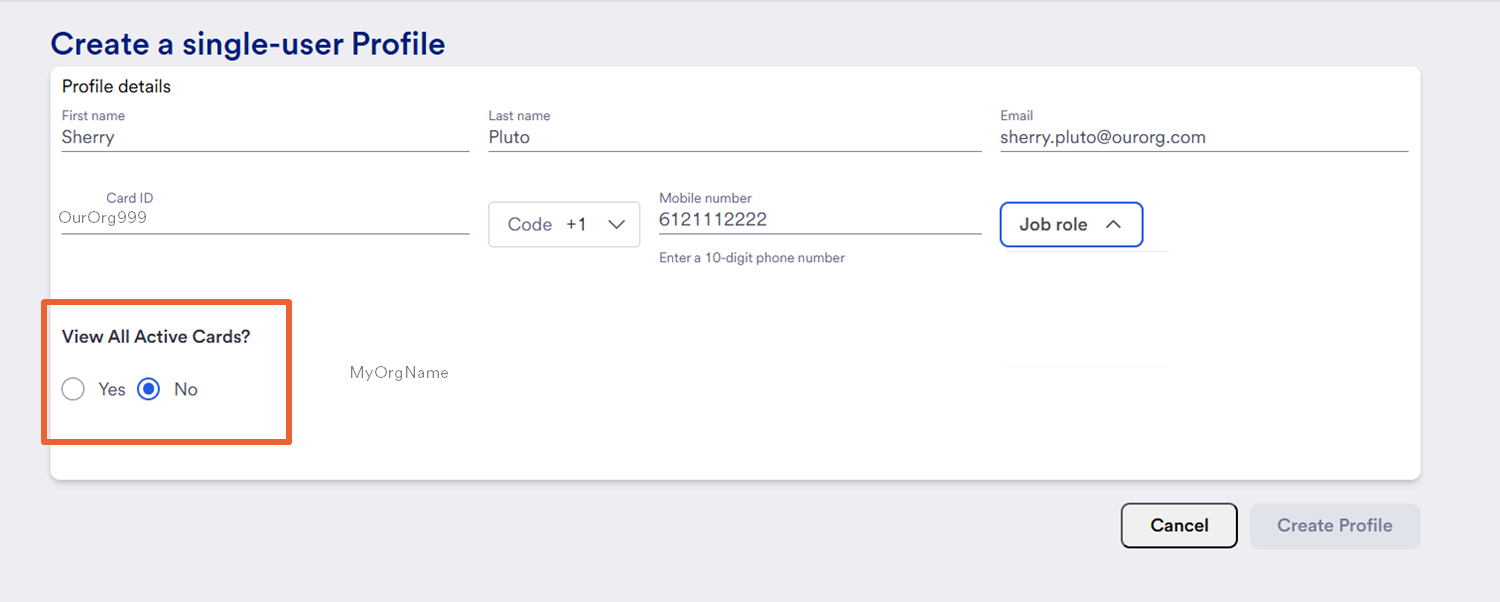
Then you will need to decide if you will want this person to see only the cards they themselves provision, or if they will have access to see all active cards provisioned by anyone.
- Click Yes or No to View all active cards option.
- Select the job role. Options are Provisioner or Approver (If you are using approvals)
They can have both roles! Remember, you cannot set up another Card company administrator, that can only be done by the bank. If you need another administrator set up, contact us.
The provisioner is ready to provision cards, and approvers are able to approve cards to end users immediately.
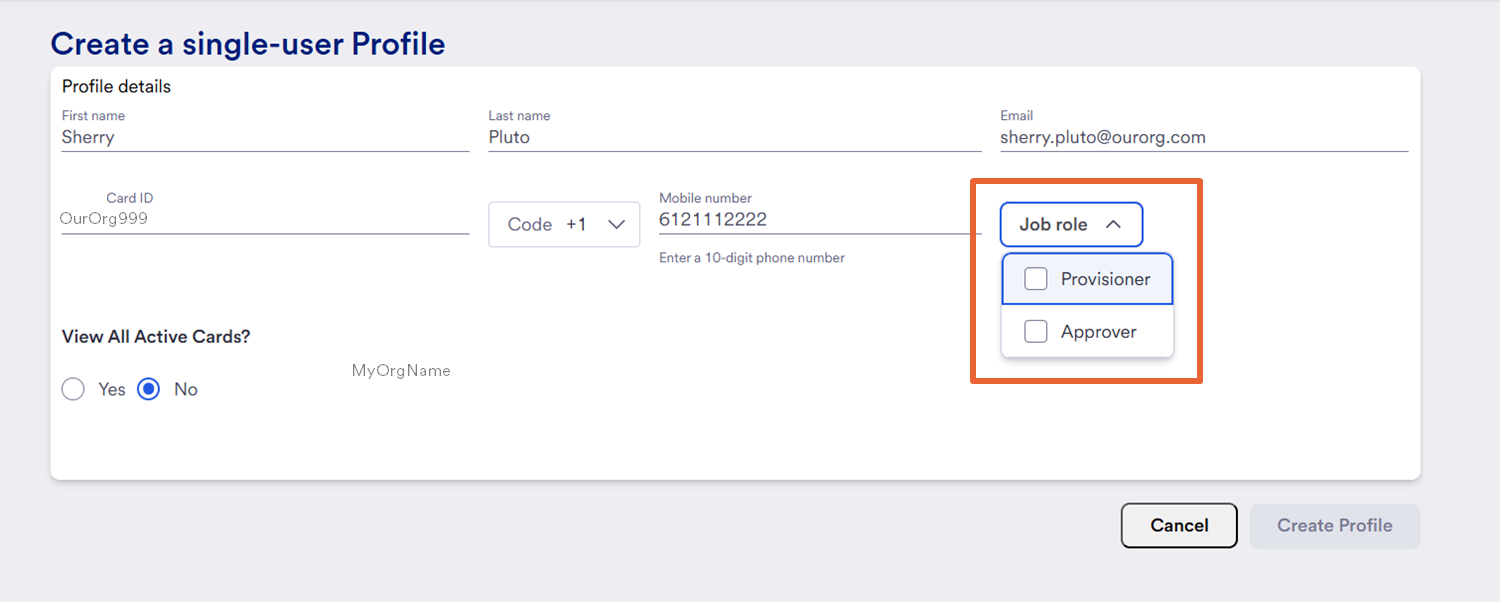
Once you have selected a job role, the create profile will become active.
Make sure you set the active cards? option first!
- Click Create Profile.
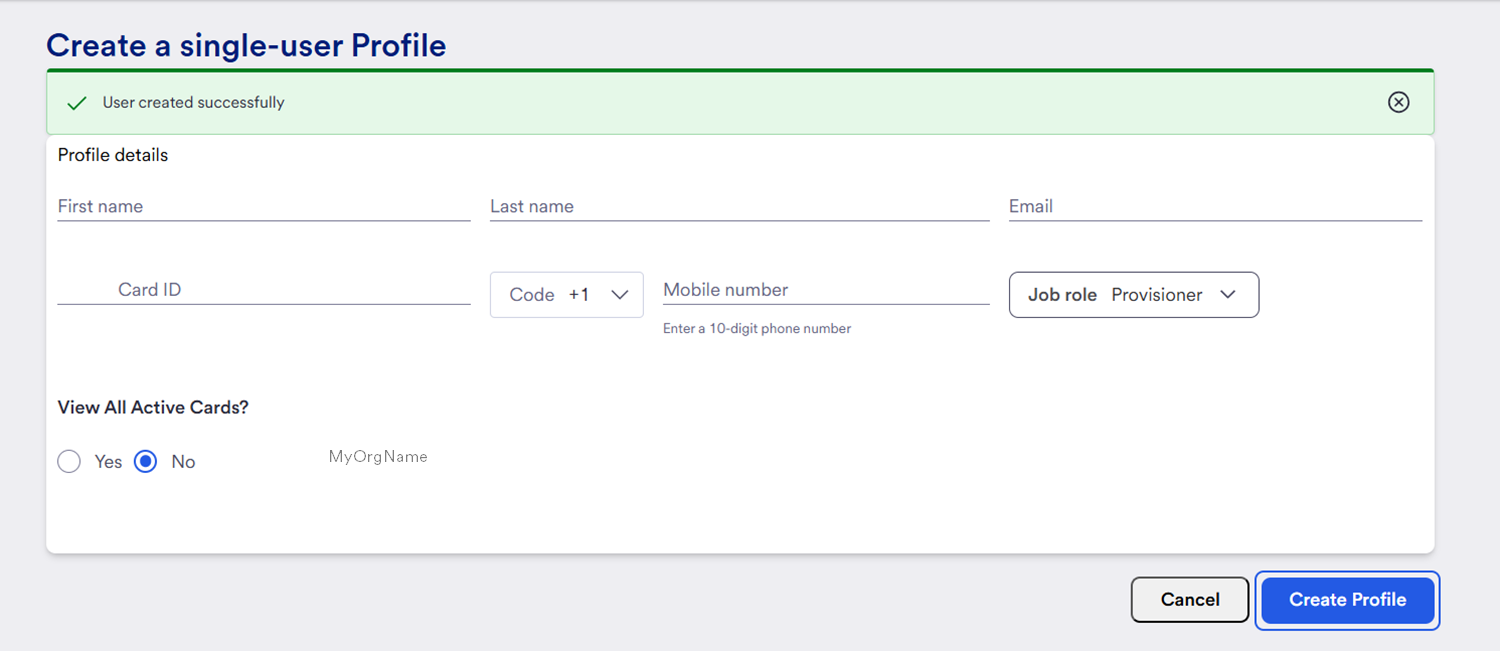
You will receive a confirmation your user profile has been successfully created.
Open existing profiles
If you wish to open any exisiting profiles, return to the User Profile view.
We are already on the User profile tab automatically.
As before, you will use the filters of Job role, or a general Search field to look up the profile.
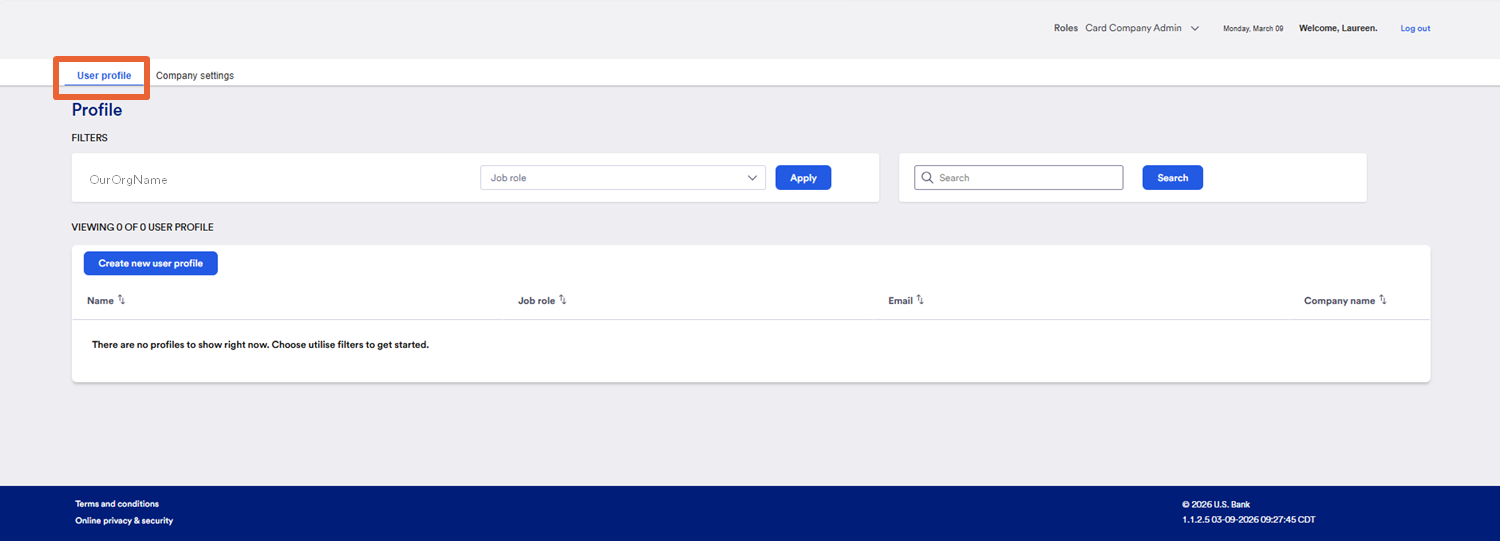
You will see all the profiles visible for the administrator.
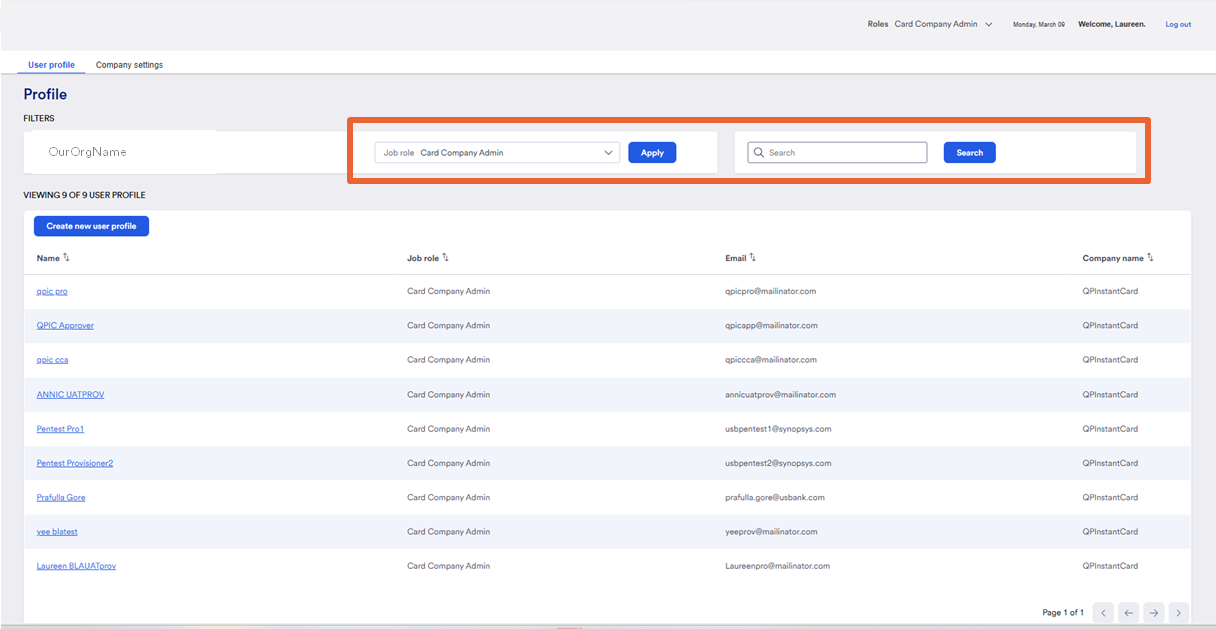
- Select the Job role you wish to view.
Options are:
- Click apply
Here we have selected provisioner.
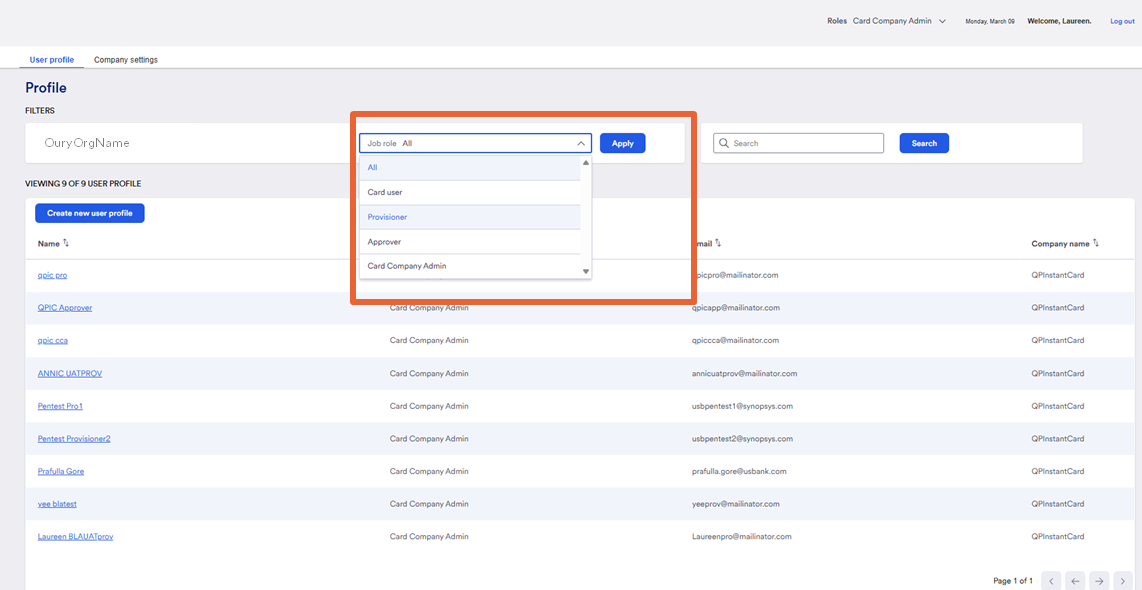
You can sort a list of active cards by name, or if you know the name of the person, search using that information.
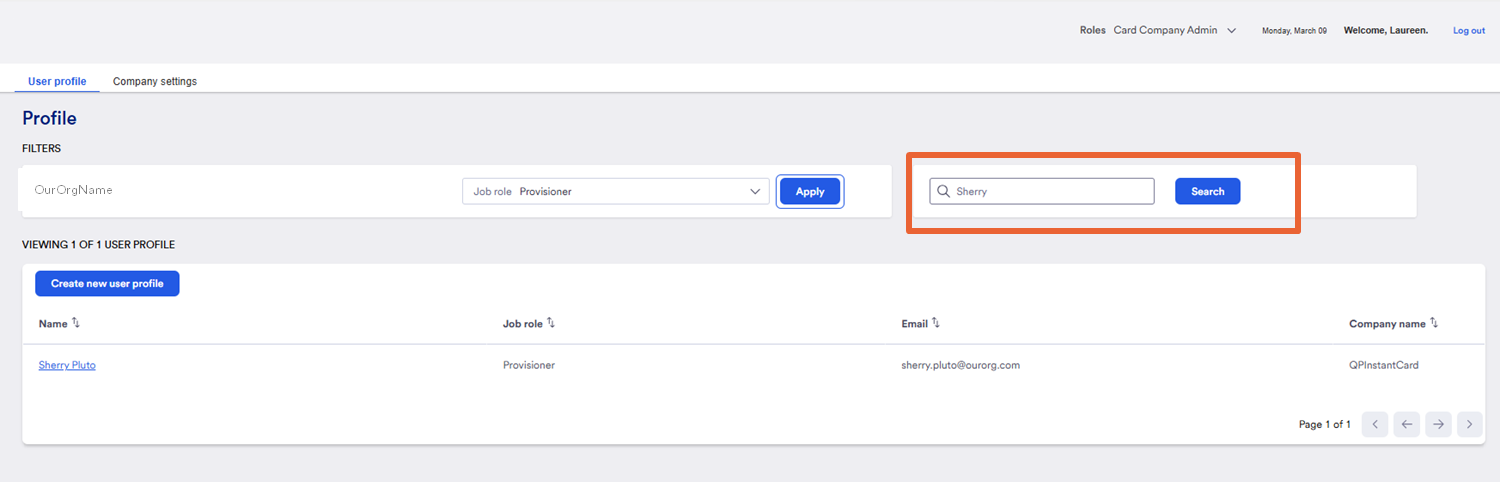
- Enter the name in the search field
- Click Search
The name under the Name column is a link.
- Click the link
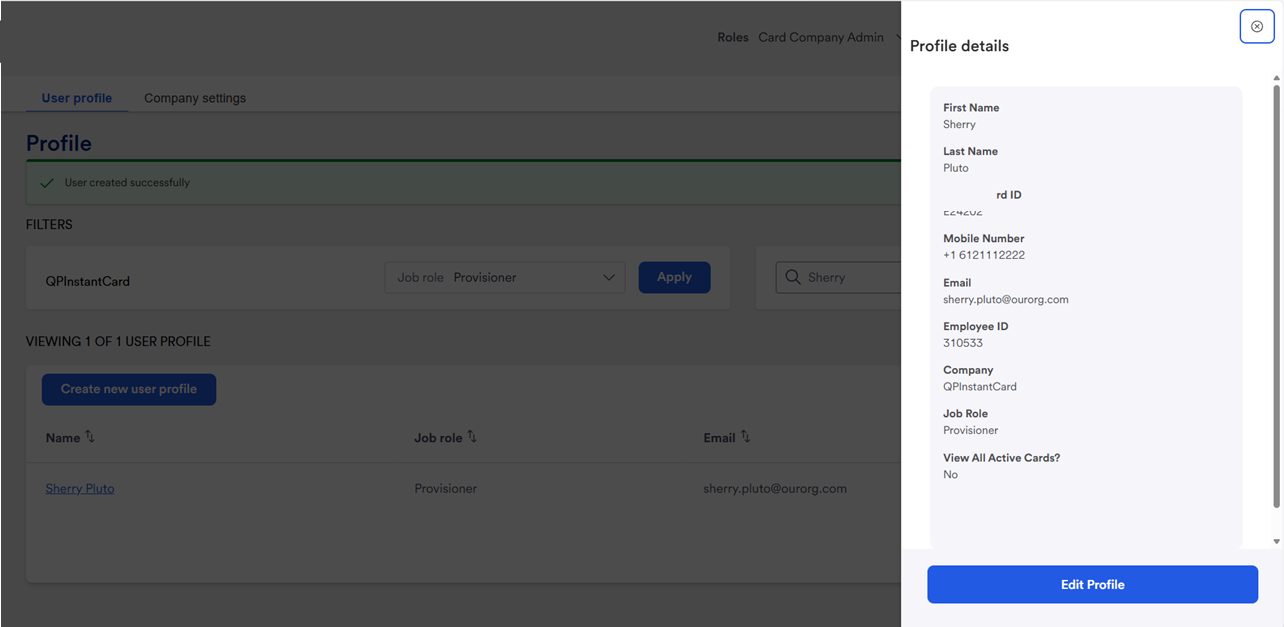
The profile opens.
Review the profile information. if you need to make changes,
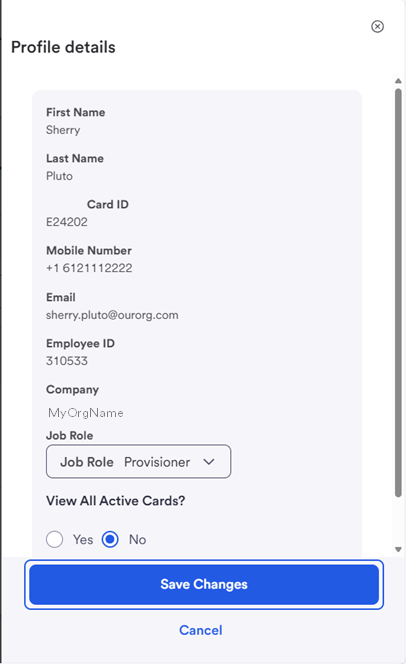
- Click Edit Profile.
At this time you can only edit job role and view.
What about profiles for cardholders?
You don’t have to create a profile for a card recipient; a profile for the cardholder is created in the background from the cardholder details section when provisioning a card – these profiles are visible in User Profile maintenance.
Company settings
Welcome to the tasks for the Card Company Administrator (Admin)
While the admin can hold other roles as well, as an admin they manage the settings for the card program.
Settings
Settings that can be managed are:
- Using approvers in the program
- Active card View settings for Provisioner and Approver roles
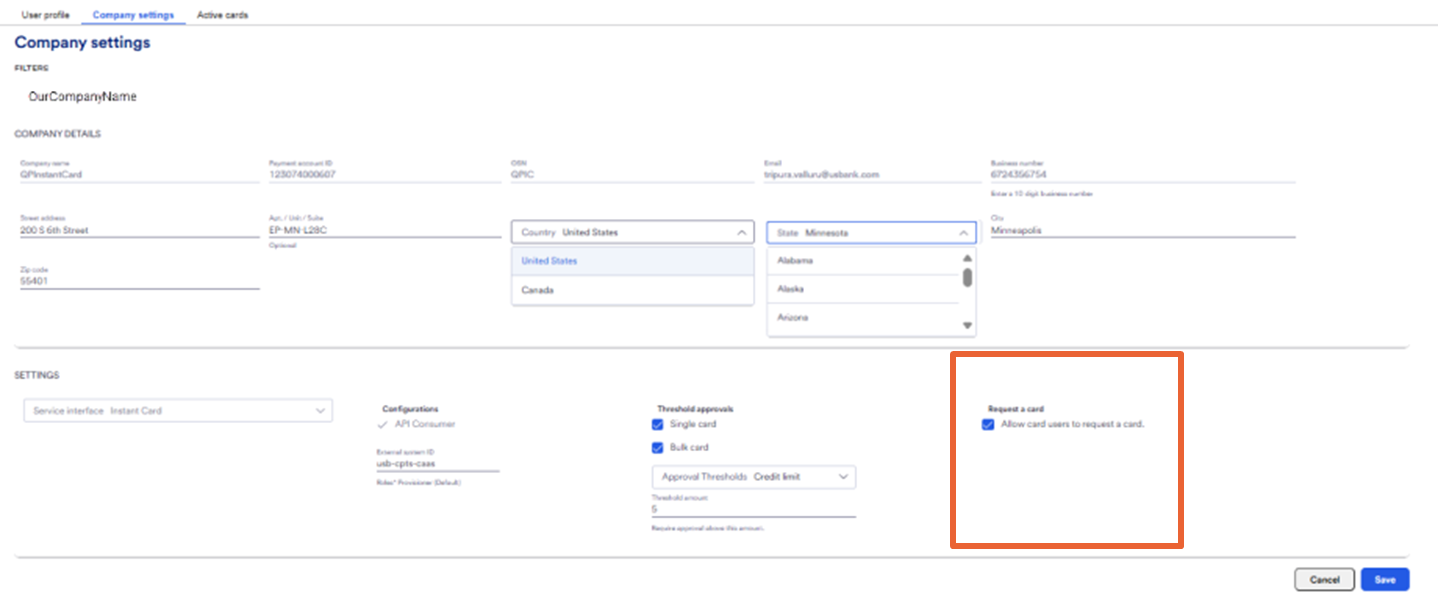
- Use of the request a card button for cardholder's
- Some changes to the billing address
In addition, administrators are the person who would contact that bank when appropriate.
To begin, the card program administrator:
- Selects Company settings menu. Current settings are visible.
- Click Edit details
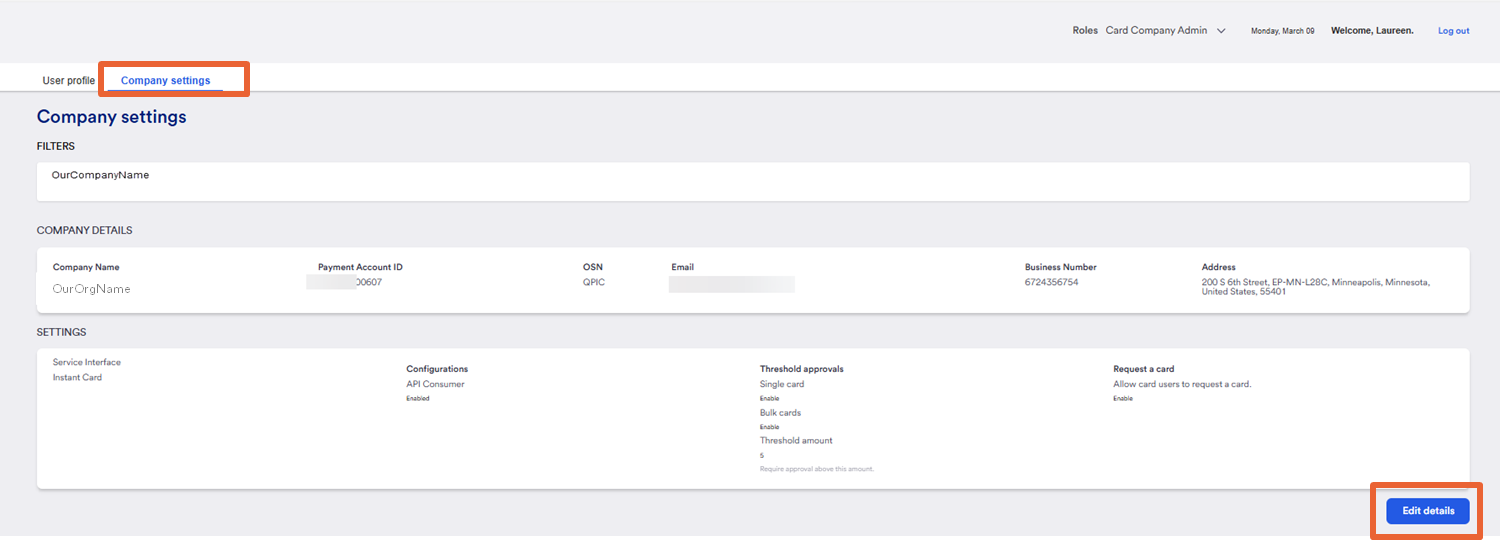
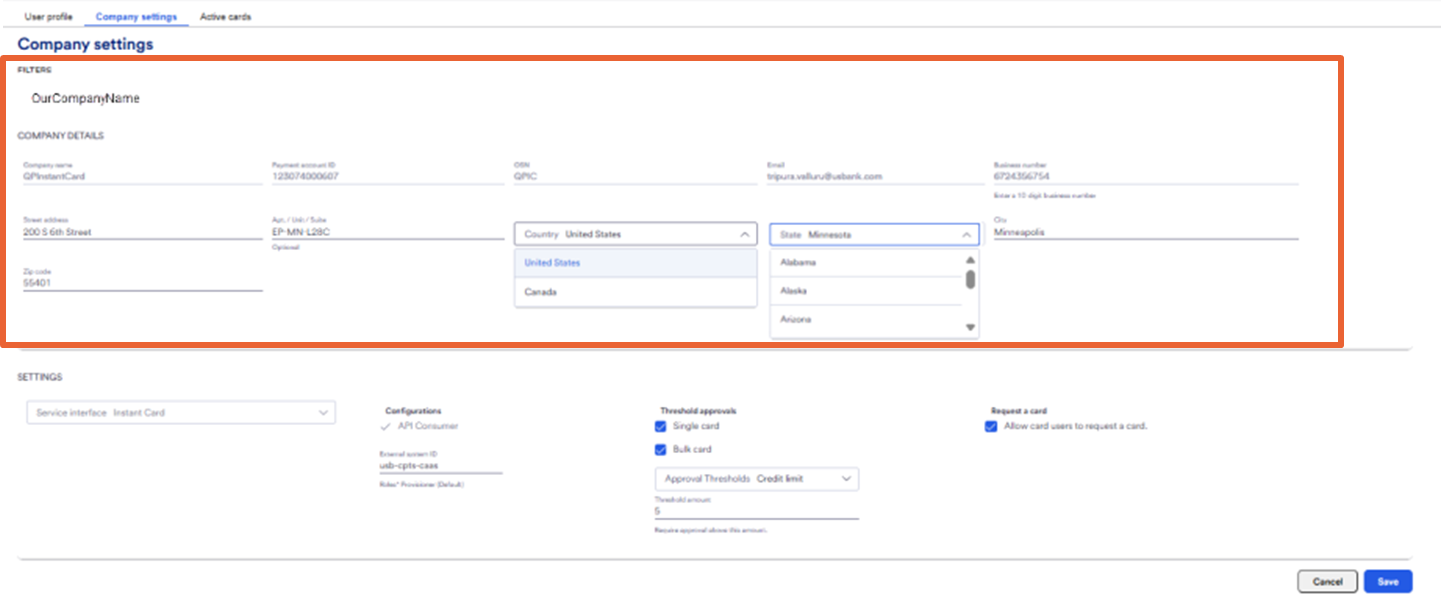
As an admin If you need to make a change to the payment account ID, OSN, Email, business number you must contact the bank.
- However, you can change some company details such as the billing country, state, and address.
- Inform the bank if you make any changes to billing address.
About billing addresses
Why is the billing address important?
It displays the billing address for users who can reveal the data to merchant as needed, and also add a card to their wallet for the tap and pay options.
Some merchants require this information. If cardholders enter the incorrect billing address, the transaction declines.
Remember, you cannot have a separate billing address for each card, they all use the same billing address.
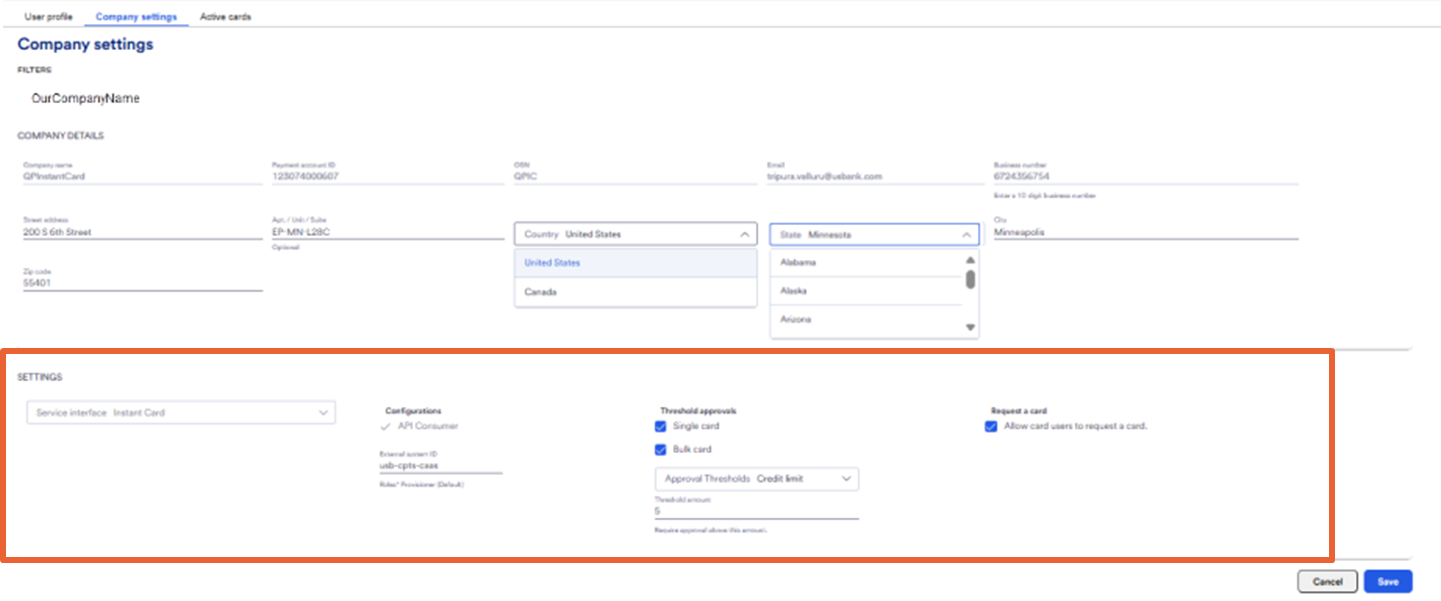
- Move down to the Settings area.
Data fields are visible for items such as type of card, configurations, threshold approvals and request a card.
Not all data fields are editable. You cannot edit type of card and configuration.
You can select:
- Thresholds for approval
- Request a card option
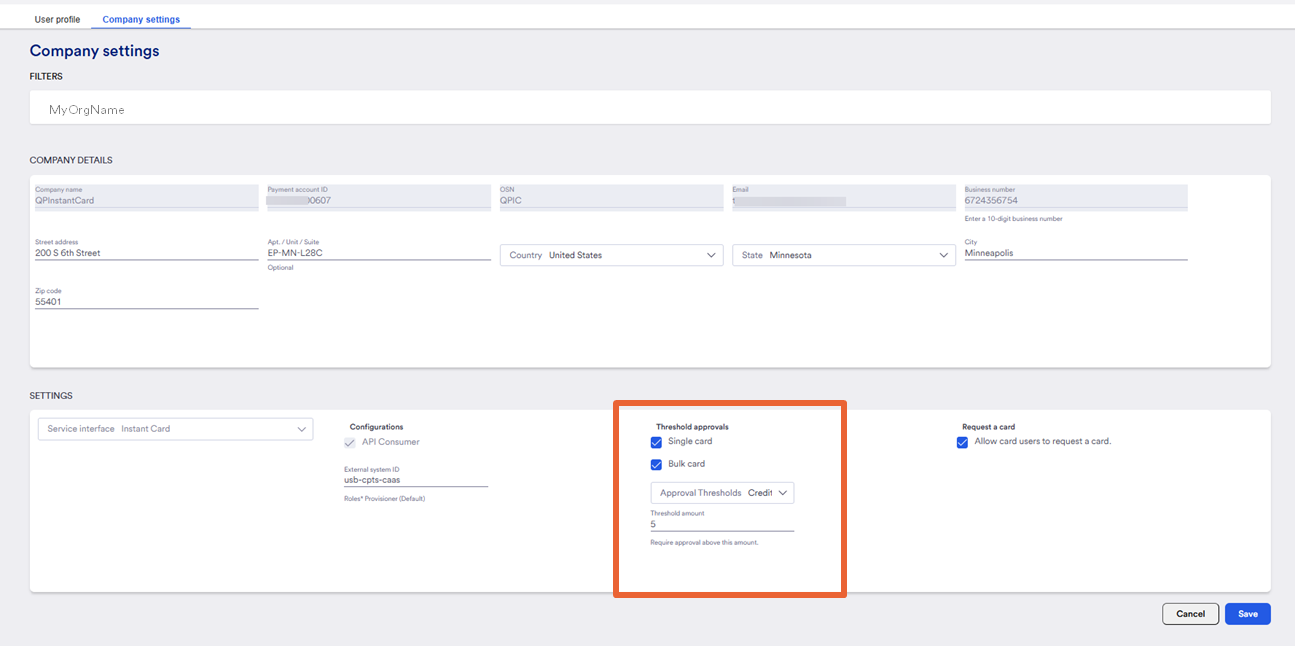
Thresholds for approval
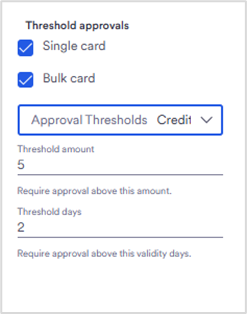
If your organization has chosen to use approvals, a Card company administrator can change the approval thresholds at any time.
When a card is provisioned, if the card amount (limit) or date timeframe meets the threshold criteria your identify, it will trigger the request to be sent to an approver before going to the cardholder.
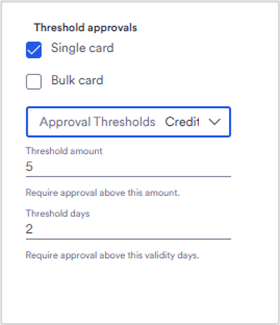
You have the option to set these thresholds for:
- Single card only,
- Bulk card only,
- or select both as we have here.
Next, identify your thresholds
- Click on the Threshold area and identify your preferences.
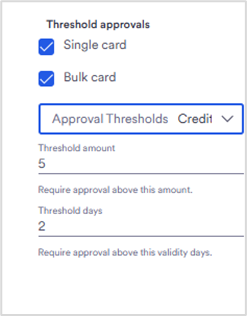
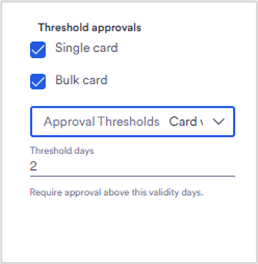
Approval threshold variables available are:
- Threshold amount (limit)
- You may want to simply put a credit limit threshold. Tip: If you want everything to go to an approver, put it the limit at 1$ here.
- Threshold days
- You might prefer to set the threshold to the card validity period. You can set a number of days which indicates when it may require approval for a lengthier time.
- Threshold amount and threshold days
- Use both parameters by choosing credit limit AND validity period so it takes both to trigger approvals
- Threshold amount OR threshold days
- Use both parameters, and either will trigger approvals
There is more than one type of threshold.
For example:
- • You might prefer to set the threshold to the card validity period. You can set a number of days which indicates when it requires approval for a lengthier time.
- Or you can use both by choosing credit limit AND validity period.
- •You can use either one if you choose credit limit OR card validity period.
- If the card request triggers any threshold, it will be sent to the approver queue.
- Once approved, card will go directly to cardholder.
- When rejected card appears as rejected in the active card list. It can be edited and adjusted if required.
- All approvers use the same queue.
Set the Request a card feature
Another option is to decide if you want the cardholders to have the ability to request a card themselves.
If you select to use this, it will place a Request card button on the mobile app screen.
- Cardholder enteres their requested amount, dates and provisioner and sends request.
- The requests are visible on the dashboard under the Requests menu.
- Once provisioned, the process is the same for approvals if used.
This feature will be visible immediately to your cardholders.
Be sure to save your changes when you are done!
Best practices for a card company administrator:
Inform your provisioners ahead of time that they will receive an email with what they need to setup the mobile app.
Be aware of the approval thresholds and how to use them.
What can a company card administrator NOT do?
Create another card company administrator profile. Only the bank is able to set that up. Contact the bank for assistance.
Card company administrators cannot create cards for themselves.