Provisioner Tasks User Guide
Learn how to create single cards in the webportal and the mobile app, how to edit existing cards, create bulk card requests, work with cardholder requests and more!
Create Single card on Mobile App
Provisioners can provision a card using the mobile app.
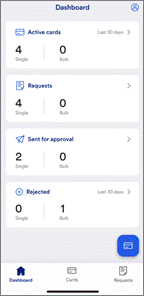
- Open the Mobile App
- Tap the card icon
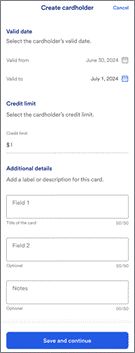
- Specify the valid dates, credit limit and any additional information.
Learn more: Each Field 1, Field 2 and Notes field has a limit of 50 characters. Your organization can use these fields to capture any information you like.
Field 1 is required to identify what the card is to be used for.
- Tap Save and continue.
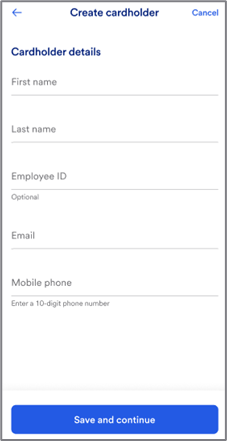
- Specify cardholder details.
Your organization may not require or use the optional employee ID field.
- Tap Save and continue
- Tap Create card
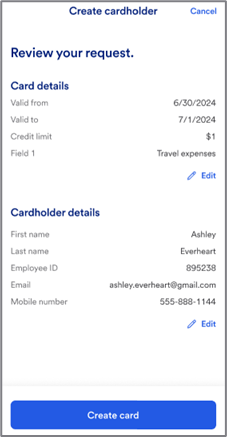
After you tap Create card, the cardholder gets an email message with instructions to access the virtual card, add the virtual card to their mobile wallet, and use the virtual card immediately.
Learn more: You can also monitor your request on the mobile app.
Tip! You can also enable and use Face ID or Fingerprint ID on the mobile app to request the one-time passcode.
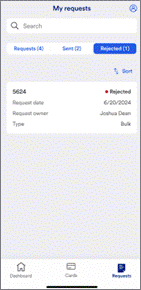
To monitor your requests on the mobile app,
- Tap Requests.
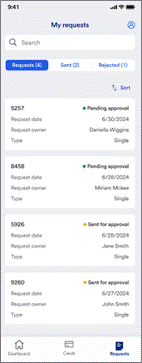
Filter to show all requests, sent requests,
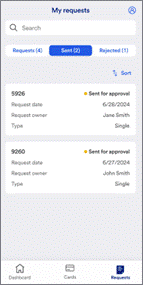
and rejected requests.